



 English
 한국어
한국어Whether and when to use a VPN for MSCW, with a cost, performance, and setup comparison of Mudfish, ExitLag, and FixPing
MSCW VPNs: Setup, Tips, Costs & Performance
Published
Global MapleStory Classic World (MSCW) can be played only in regions Nexon designates as part of its Global service. See [1] to check whether your country is in the Global region. If you play from outside that region, you’ll need a VPN.
But is it okay to use one? When should you turn it on, and which VPN should you choose? Drawing on Nexon’s official guidance and my own experience, I’ll answer those questions and compare the costs, performance, and setup of three services often discussed in the MSCW community: Mudfish, ExitLag, and FixPing.
The short answer is that as of October 22, 2026, FixPing is my top pick. It’s inexpensive and was comfortable enough to play on. Your connection and priorities may differ from mine, though, so take a look at the comparison and decide what works for you.
1. Can You Play with a VPN?
Nexon’s official support article discusses playing its games through a VPN [2].
![Nexon’s official VPN support article [2]](/_astro/2-img-1.BkabOFur_Z2eG4t4.webp)
In short, ordinary play through a VPN is not explicitly prohibited, provided you aren’t using it to violate the Terms of Service.
The MSCW team also appears to be aware that some players connect from outside the Global region, yet it has taken no apparent action against them since Founder’s Access began. On October 15, it even added official Korean-language support [3], and Inkwell communicated directly with Korean players while testing it [4].
![Official announcement of Korean-language support for MSCW [3]](/_astro/2-img-2.DxD_UqlL_Z2mFNXQ.webp)
![Inkwell communicating in Korean with Korean players [4]](/_astro/2-img-3.BXe1BQKj_Z1FAwaX.webp)
There are also signs that the team may support other languages1 that aren’t the main languages of the Global service region. This could simply be for players of different nationalities who live within the region. Still, taken together with the official guidance and how the game has been run so far, it makes me wonder whether the team also has players outside the region in mind.
VPNs are therefore not explicitly banned, and many people currently use them to play MSCW. Streamers and YouTubers outside the Global region are playing it live, too. None of this means that access from outside the Global region is officially supported. Please keep in mind that you are responsible for any problems you encounter when using a VPN.
2. When Should You Use a VPN, and Which One?
First, let’s separate the times when you may need one:
- Installing and preparing to launch the game → You may need a VPN for Steam or the Nexon Launcher
- Playing the game → Use a VPN if you’re outside the Global region
- Buying NX → I recommend turning the VPN off [2]
In other words, use a VPN to install or play the game and turn it off when buying NX. You may also need a VPN connection if you can’t log in to the Nexon Launcher.
There are plenty of services to choose from, including GearUp, LagoFast, NordVPN, Surfshark, and Proton VPN. This guide looks at Mudfish, ExitLag, and FixPing, three names that regularly come up in the MSCW community [5]. They differ in pricing, setup difficulty, and how they feel to use.
- Mudfish charges based on the data you use. It can be economical if you play only a little, but there is currently an issue that can drain credits unexpectedly.
- ExitLag is subscription-based. In my tests, it offered low latency and a smooth experience, but it is among the more expensive options here.
- FixPing is also subscription-based, but much cheaper. It performed well enough to play comfortably in my tests.
I’m using Mudfish at the moment, but if I were choosing a new VPN today, I’d pick FixPing. Below, I’ll compare their costs and performance, then walk through how to set each one up.
3. Mudfish
Mudfish is a fairly stable, cost-effective VPN. It supports 12 languages, including English, Korean, Japanese, Simplified Chinese, and Traditional Chinese [6], and has 653 official relay nodes [7]. Its setup may be a little more involved than the other VPNs here.
The usage-based plan is still appealing, but as of October 22, 2026, I can’t strongly recommend Mudfish for MSCW because of a problem that can drain credits unexpectedly. Here’s why.
3.1. Mudfish Costs
Mudfish bills according to usage. The app calls this plan Pay Per Traffic. The credit top-up screen offers the same set of denominations in each available currency. For example, the smallest USD option shown was $4.99.


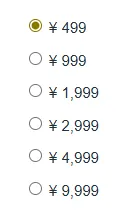
You can change the payment currency on the credit purchase page. Because the top-up amounts differ by currency, choosing one with a favorable exchange rate may let you buy a smaller amount of traffic credit.
How long does one top-up actually last? To get a rough idea, I actively played for five minutes from Korea at 19:00 UTC and checked the credit used.
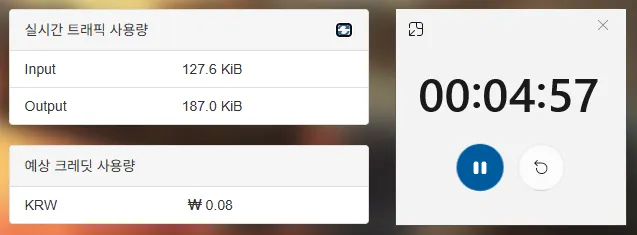
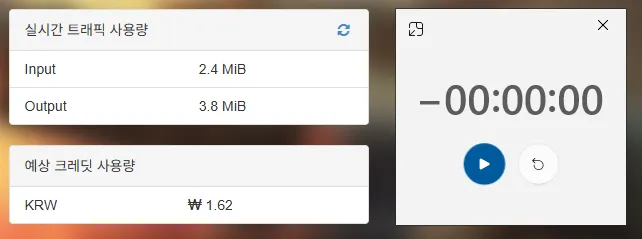
The five-minute test used about $0.00125 in credit. I converted the original KRW reading using the test’s approximate rate of $1 = ₩1,300. Extrapolating from that short run gives:
- 1 minute → about $0.00025
- 1 hour → about $0.015
- 24 hours → about $0.35
- 30 days → about $10.52
Keeping the game open all month would add up, but most people don’t play around the clock. At three hours a day, the smallest USD top-up of $4.99 could theoretically last about 111 days under these test conditions.
Actual usage won’t always match this short test. There are two things to watch for right now.
First, if you add both MSCW and the Nexon Launcher to Mudfish, installing or updating the game can use a lot of data. A patch may download 1–2 GB, which could use roughly $0.10–$0.21 in credit at the same conversion rate.
Second, there is a CDN issue that may drain credits when you download files, stream, or do other work while Mudfish is routing MSCW traffic.

Put simply, leaving MSCW open while doing other things may increase your VPN data usage. I never ran into this with other games on Mudfish, so it appears to be a recent issue.
While playing MSCW through Mudfish, I recommend avoiding downloads and streaming where possible, and always closing Mudfish after you quit the game. As long as you watch out for those two issues, paying only for the data you use is still attractive. I also like that unused credit lasts a long time: I’m currently using credit I hadn’t touched for about two years.
3.2. Mudfish Performance
Mudfish’s latency can vary considerably depending on how you configure its relay nodes. In my tests from Korea, different settings produced a gap of up to 40–50 ms.
With a poor setup I saw about 180 ms on average; with a suitable one, around 140 ms. The best reading I’ve seen was 110 ms.
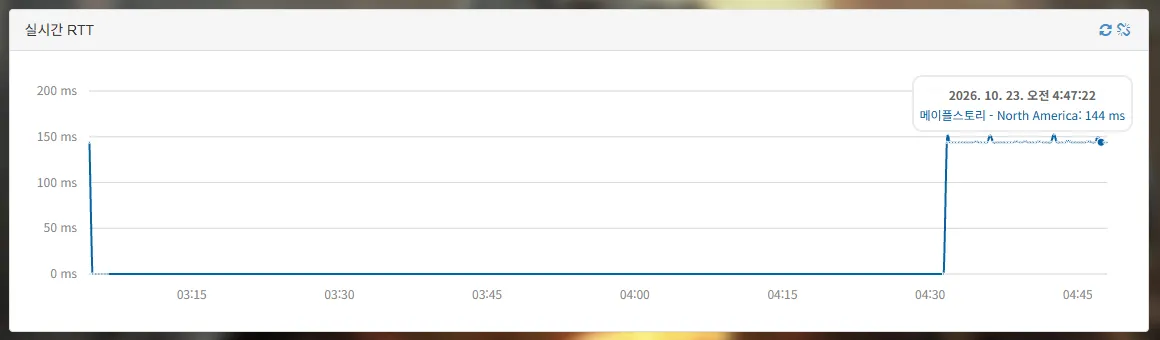
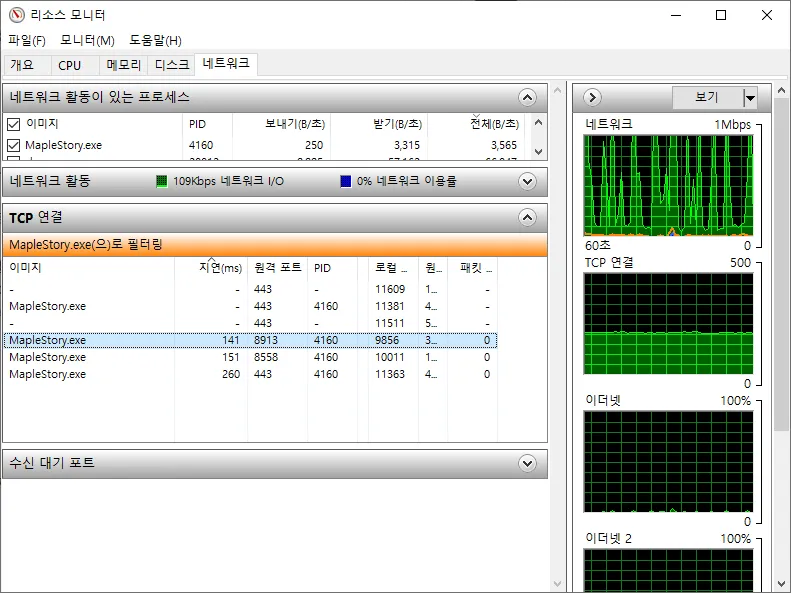
Next, I’ll show you how I configured the relay nodes to bring latency down.
3.3. Set Up Mudfish
First, I’ll route MapleStory Classic World through Mudfish. If needed, I’ll add the Nexon Launcher separately. You can configure Steam in much the same way, so I won’t cover it here.
Download and install Mudfish from its download page. These steps use the English interface. If yours is in another language, you can still follow the layout and icons in the screenshots.
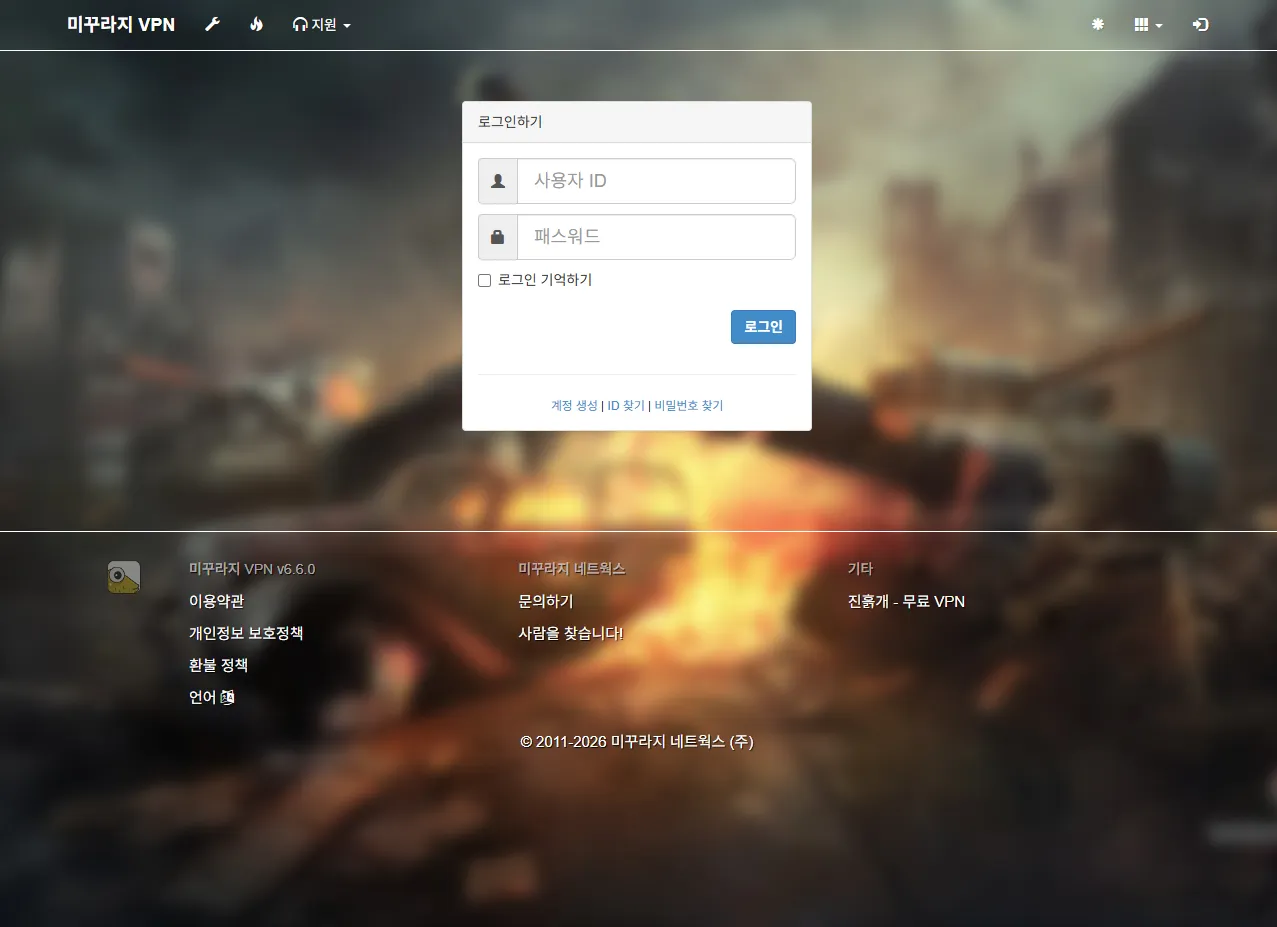
Launch Mudfish. Its dashboard will open in your browser; log in there first.
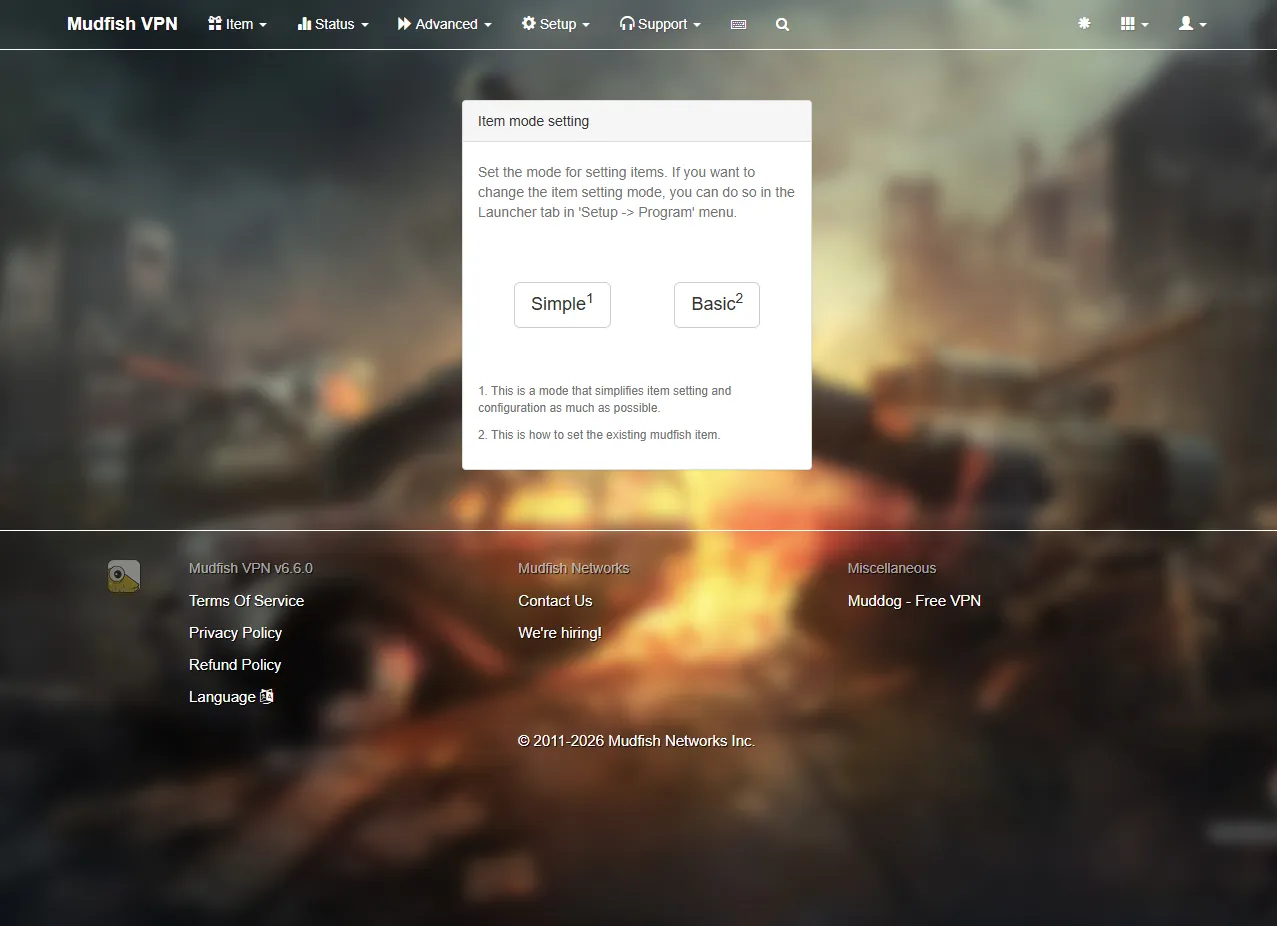
Choose Basic mode.
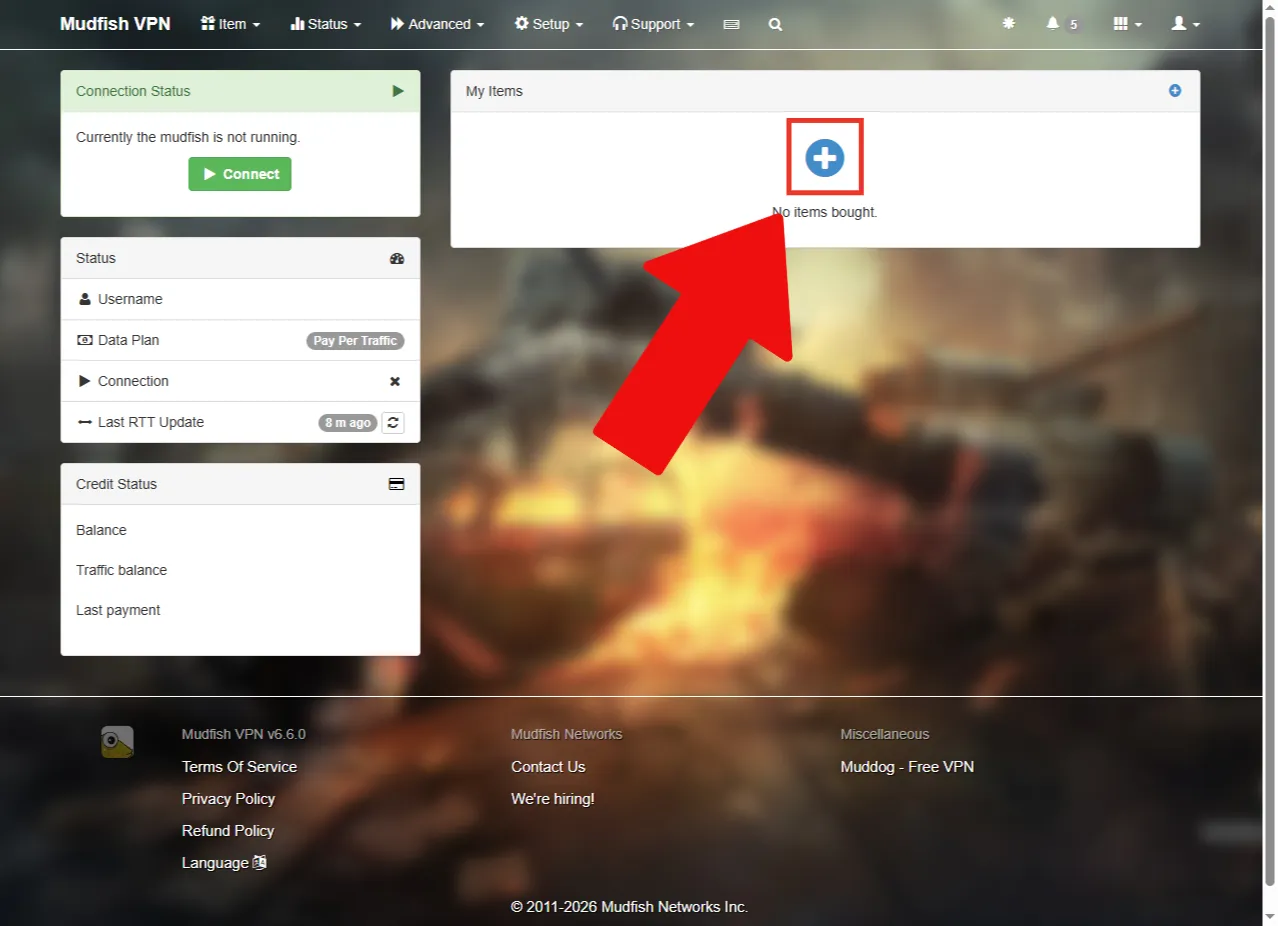
Click the add item button.
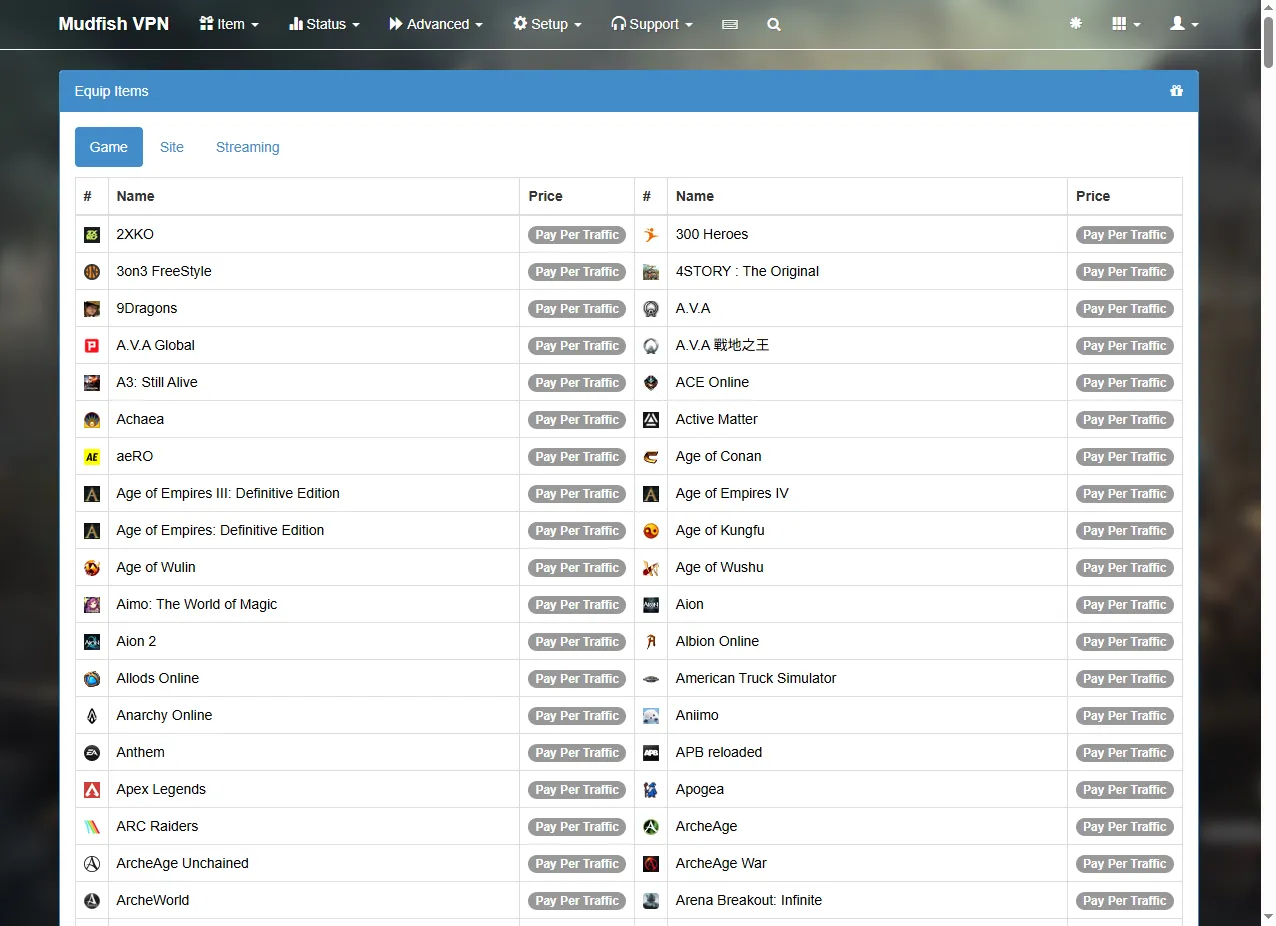
Press Ctrl + F to search for MapleStory. Enter the search term in the language used by your interface.
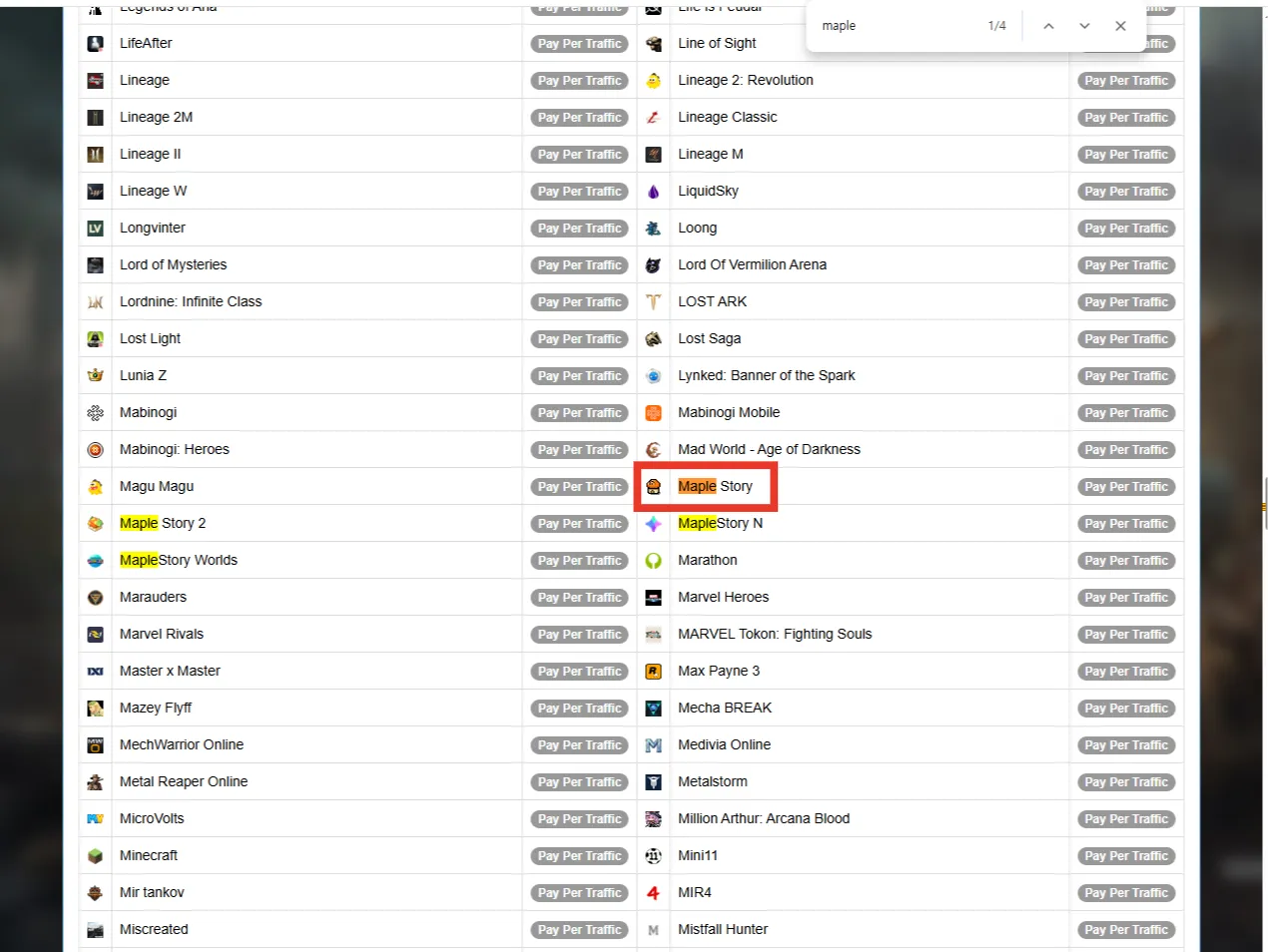
Select Maple Story from the results.
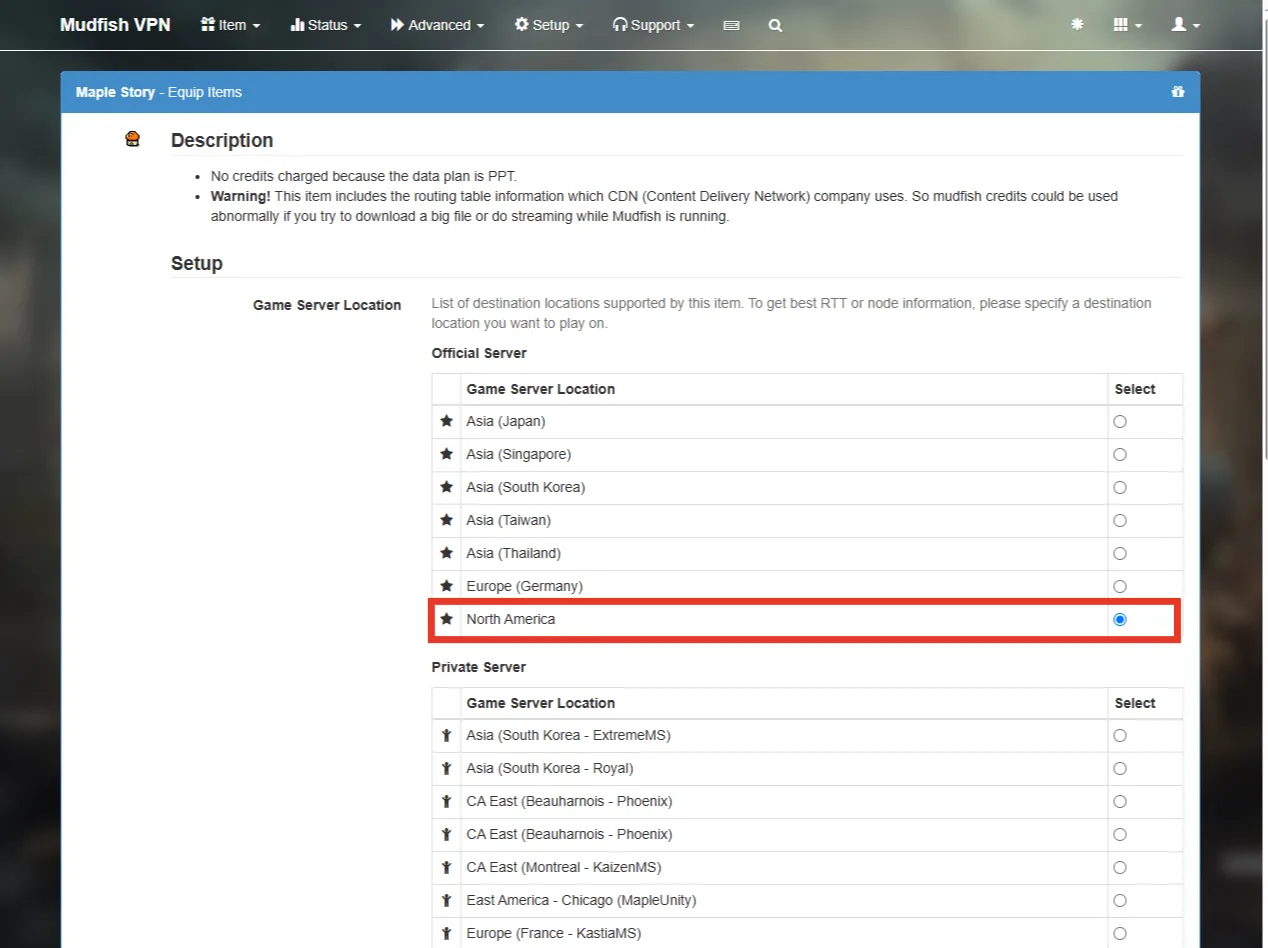
Set Game Server Location to North America.
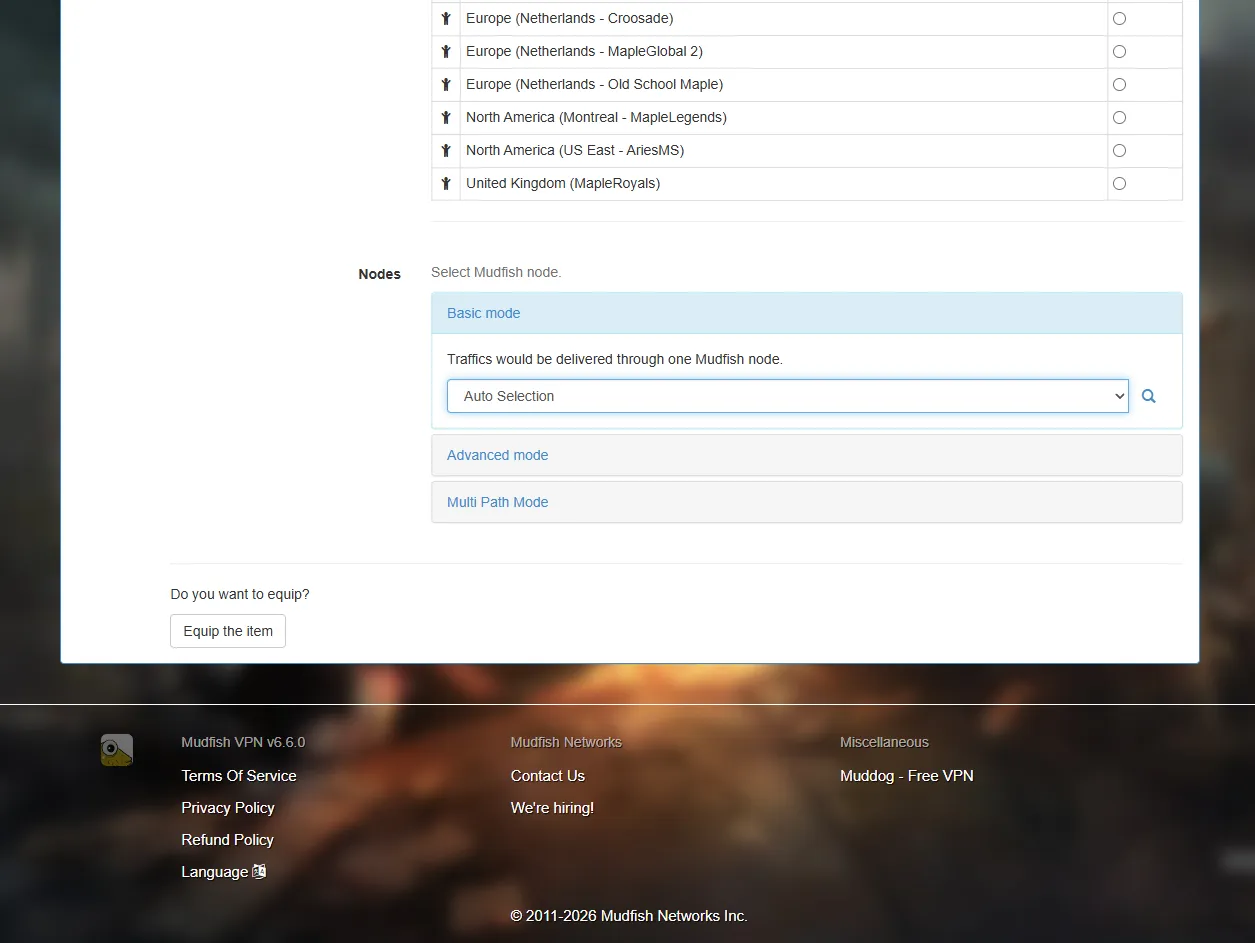
Set Nodes to Auto Selection.
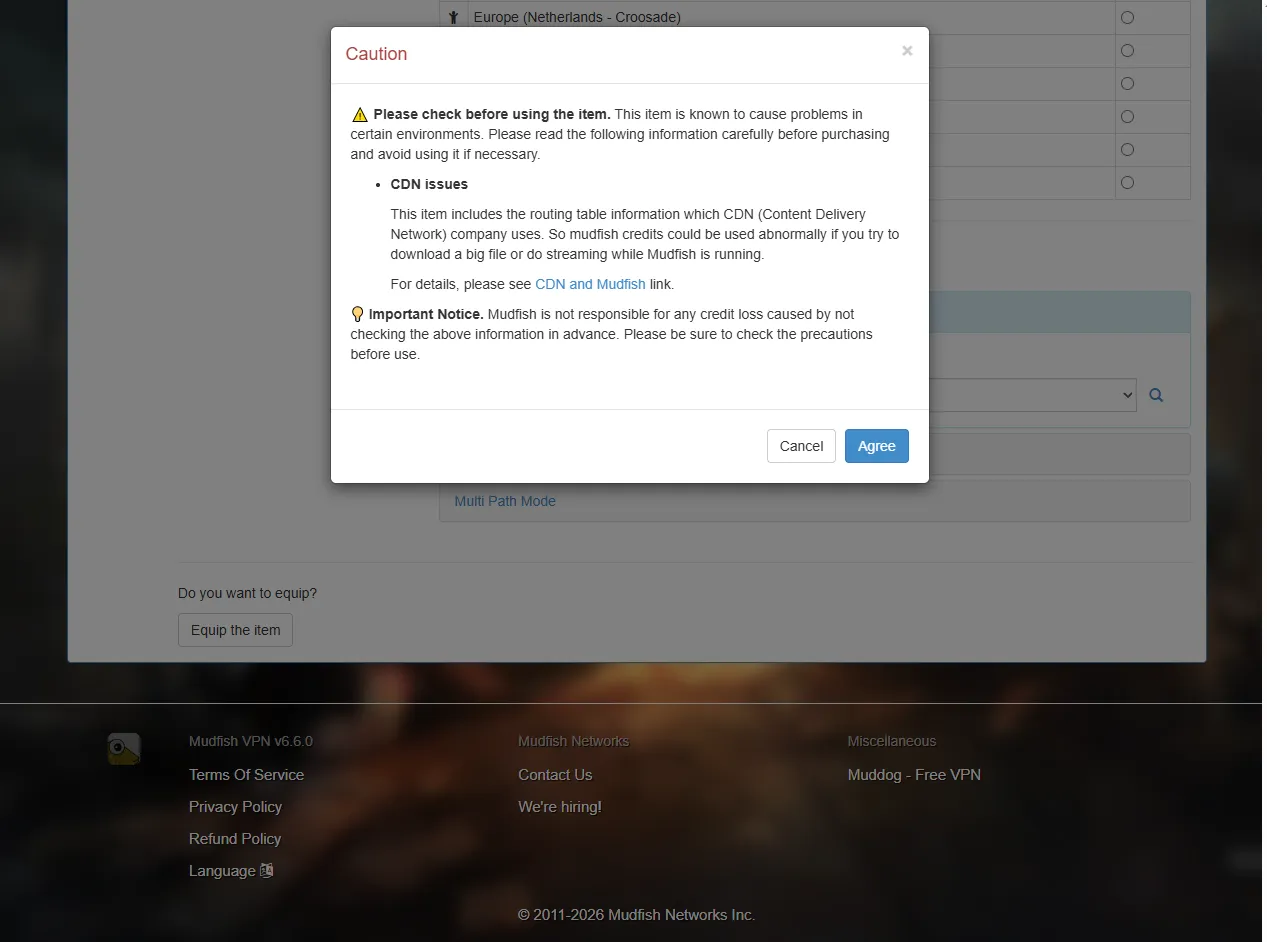
A warning about the current CDN issue will appear. Read it and agree to continue, keeping the unexpected credit use described above in mind.
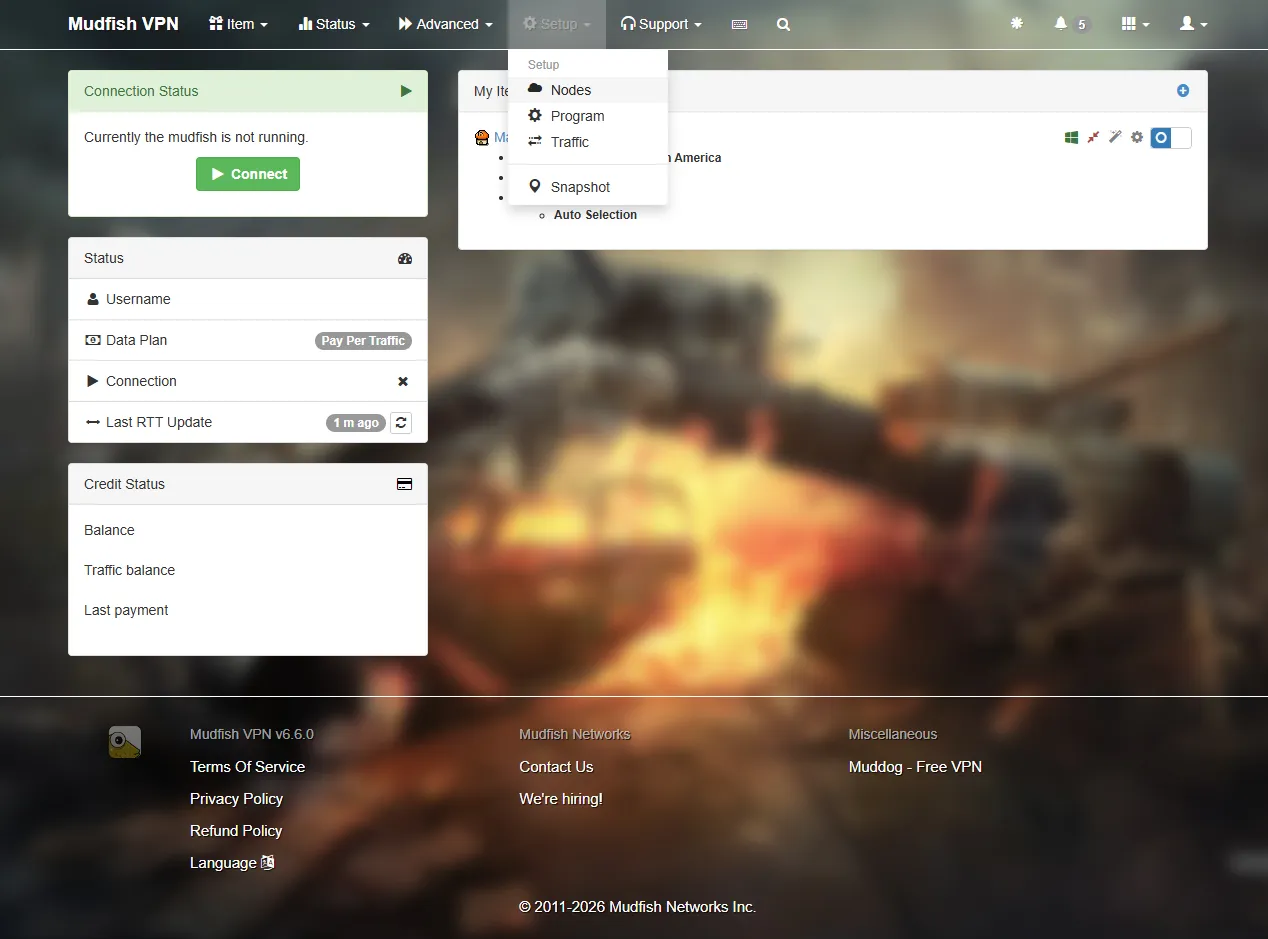
Next, go to Setup → Nodes.
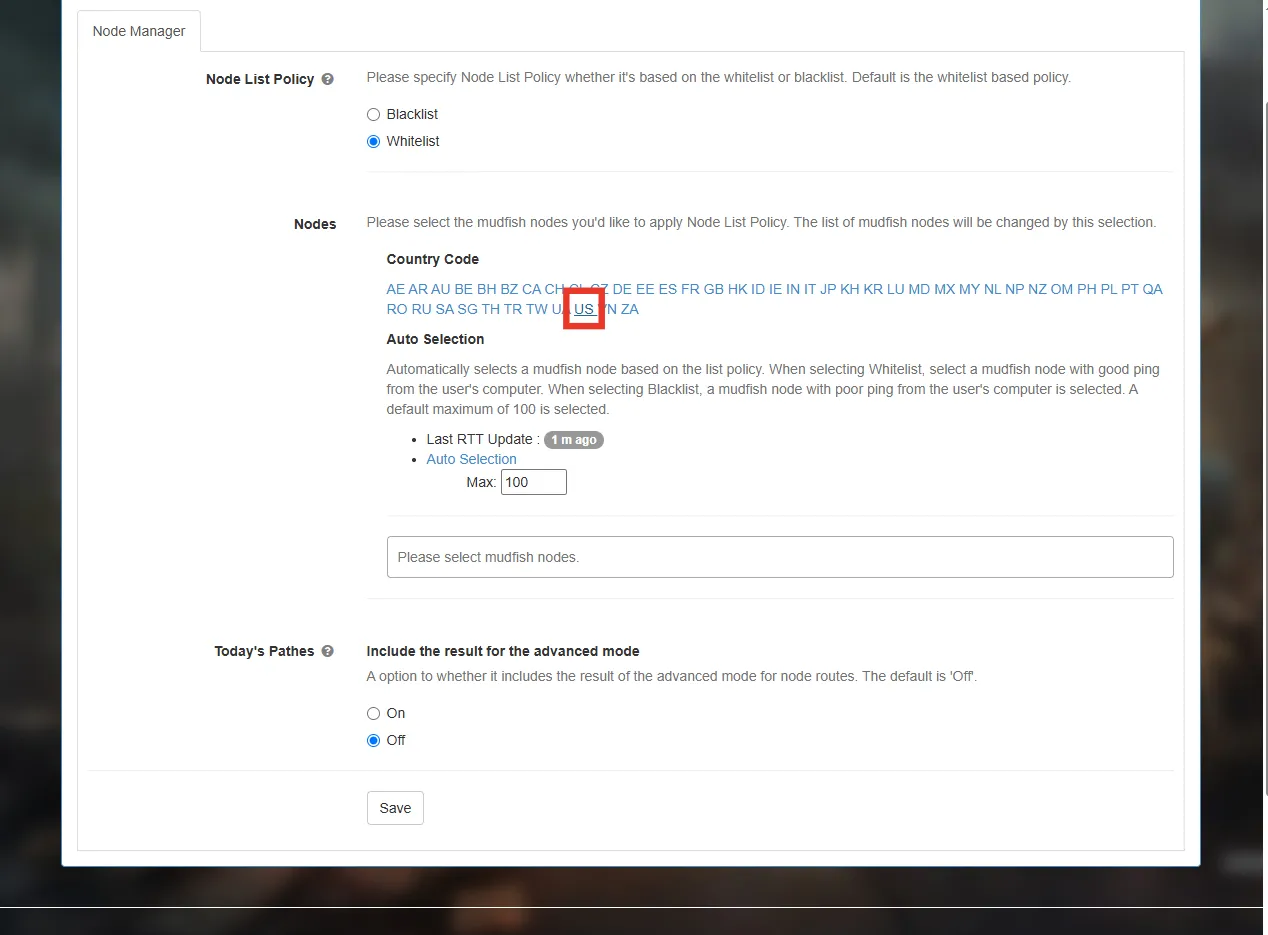
Select US under Country Code.
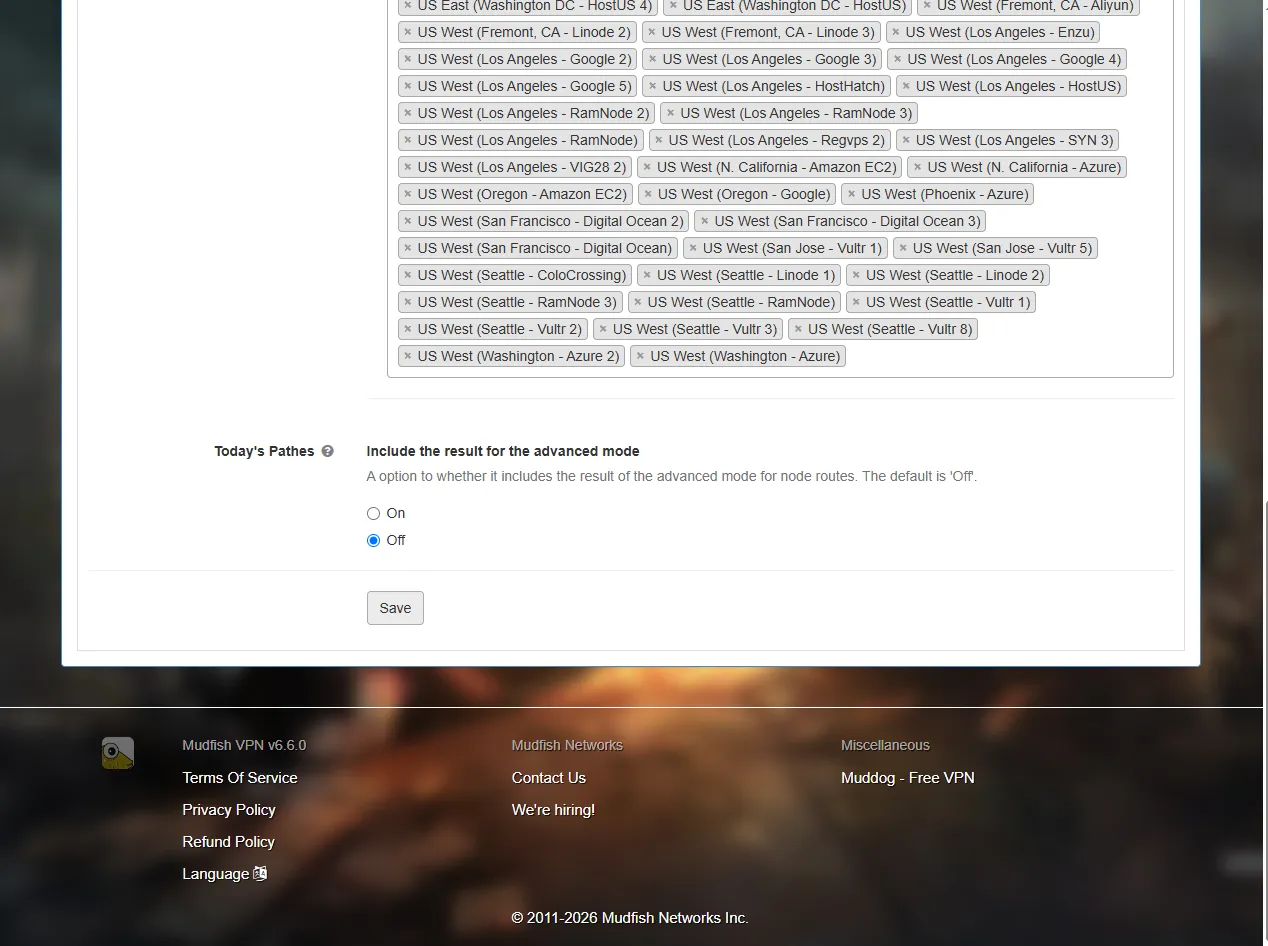
Click Save.
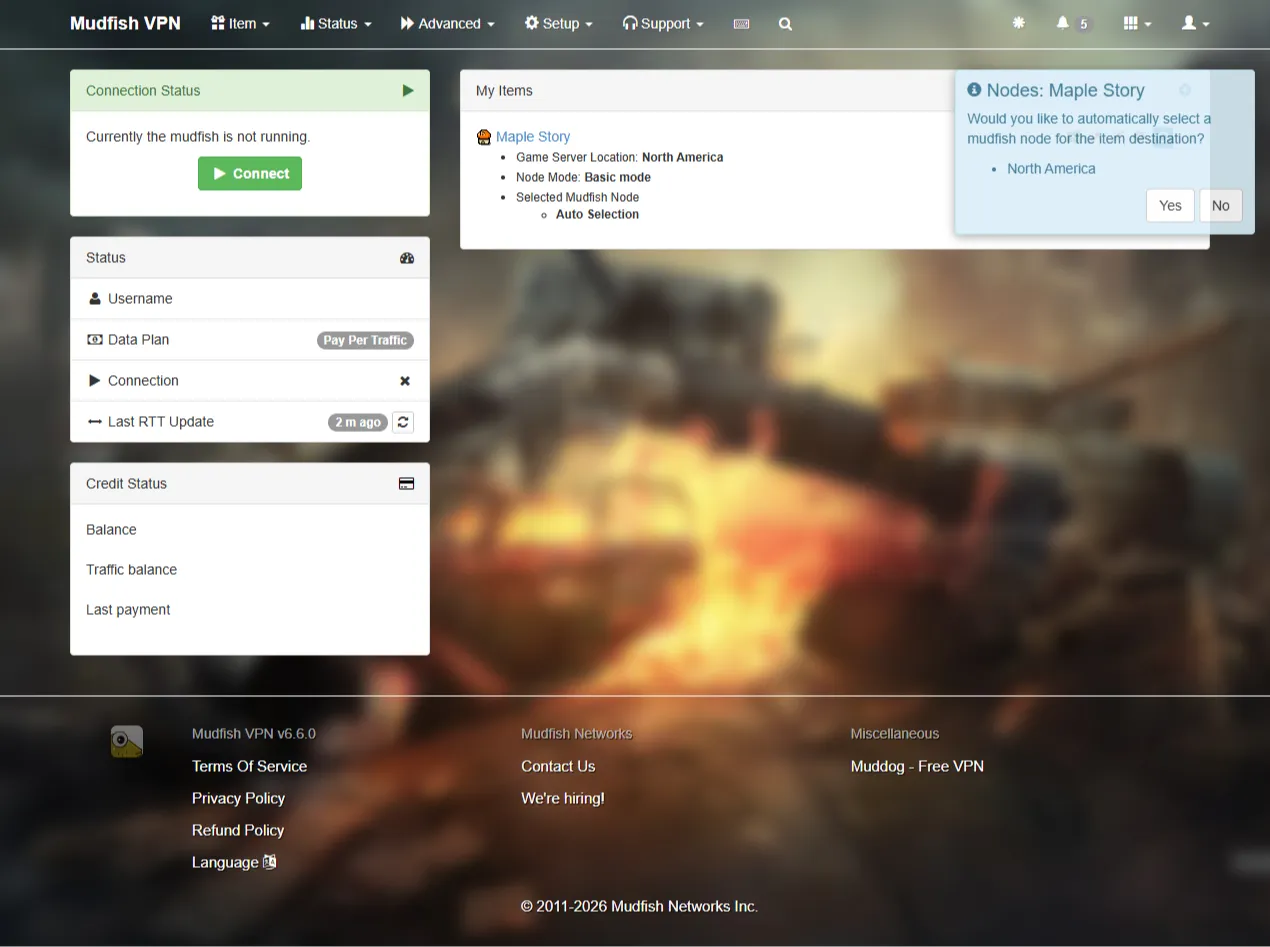
When a blue prompt appears, click Yes. Mudfish will automatically choose a suitable relay node. If you miss the prompt,
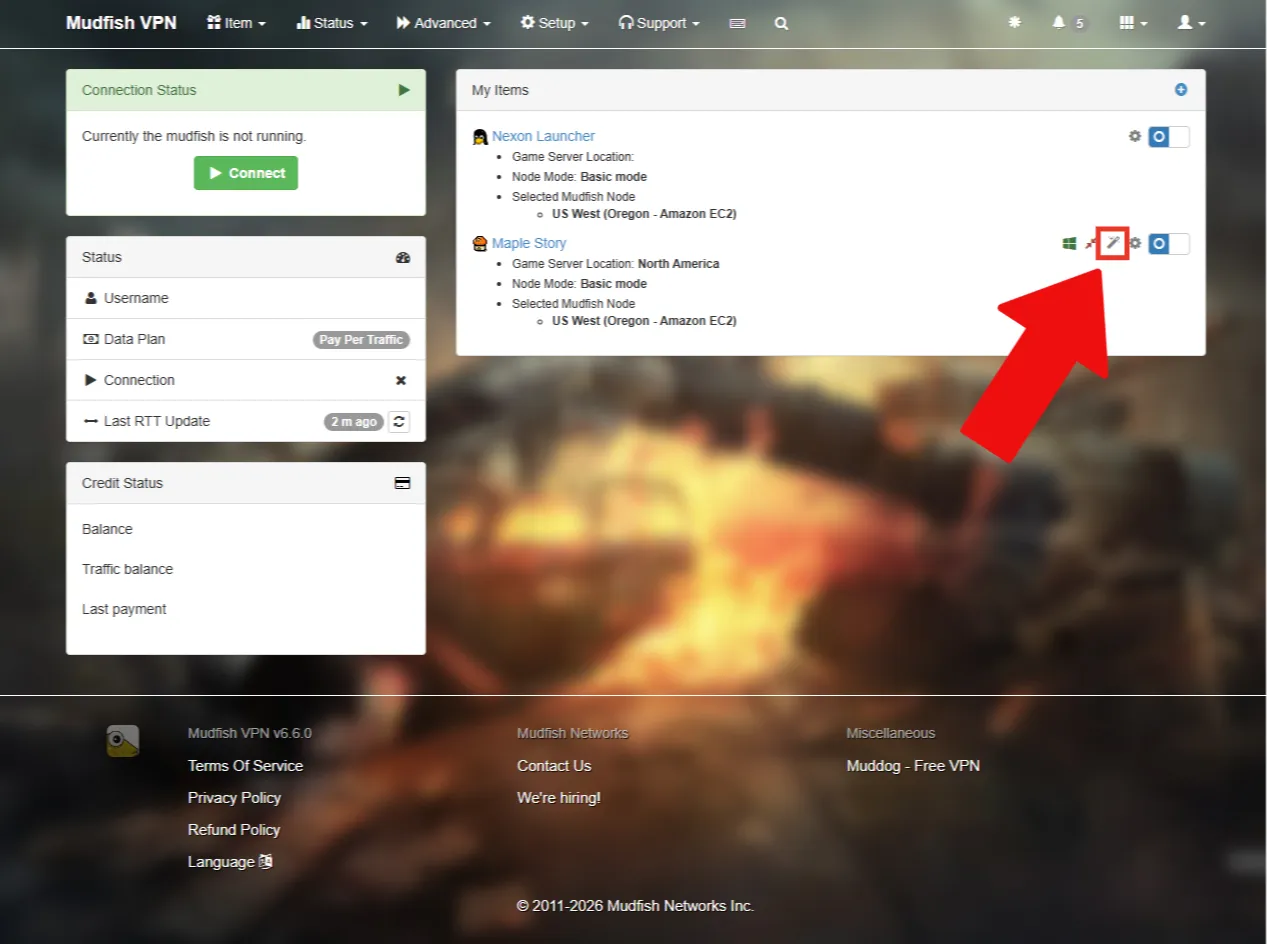
click the auto-selection icon to choose a node.
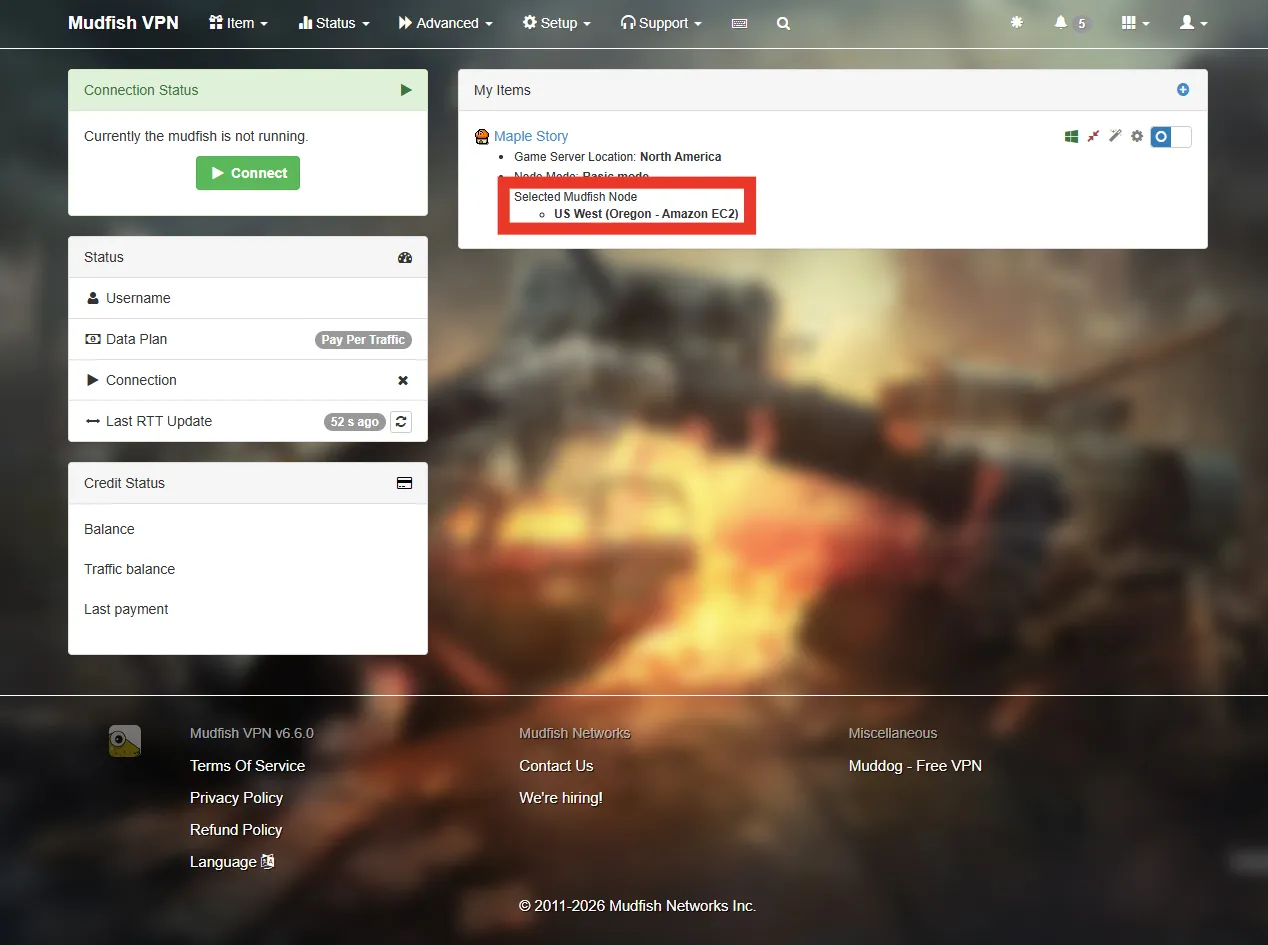
Check that a node was selected. The available nodes change, so its name doesn’t have to match the screenshot.
That completes the MSCW routing setup. Next I’ll show how to add the Nexon Launcher if you also need a VPN to use it. If you only need the VPN while playing, you can skip the next part.
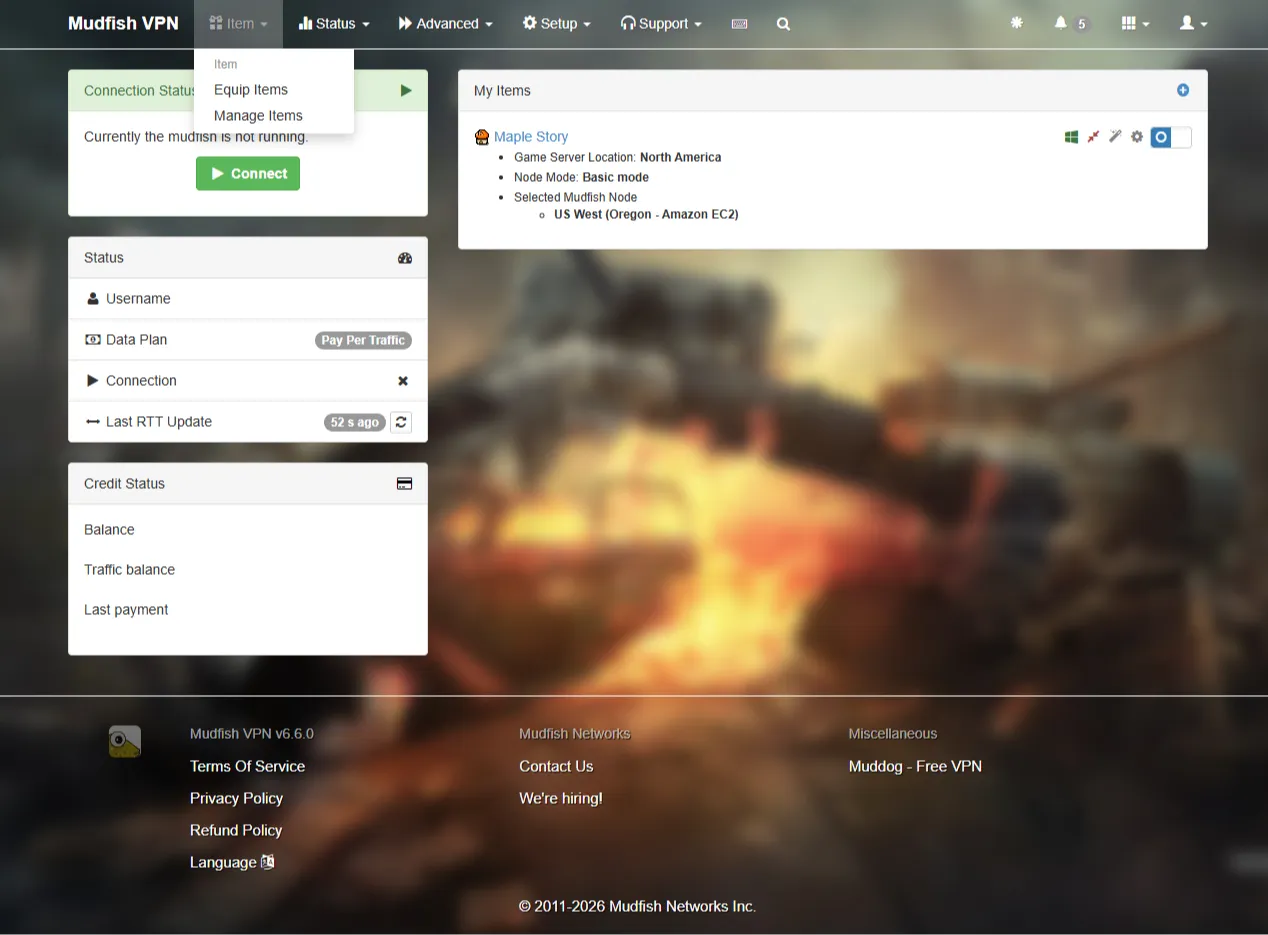
Go to Item → Manage Items.
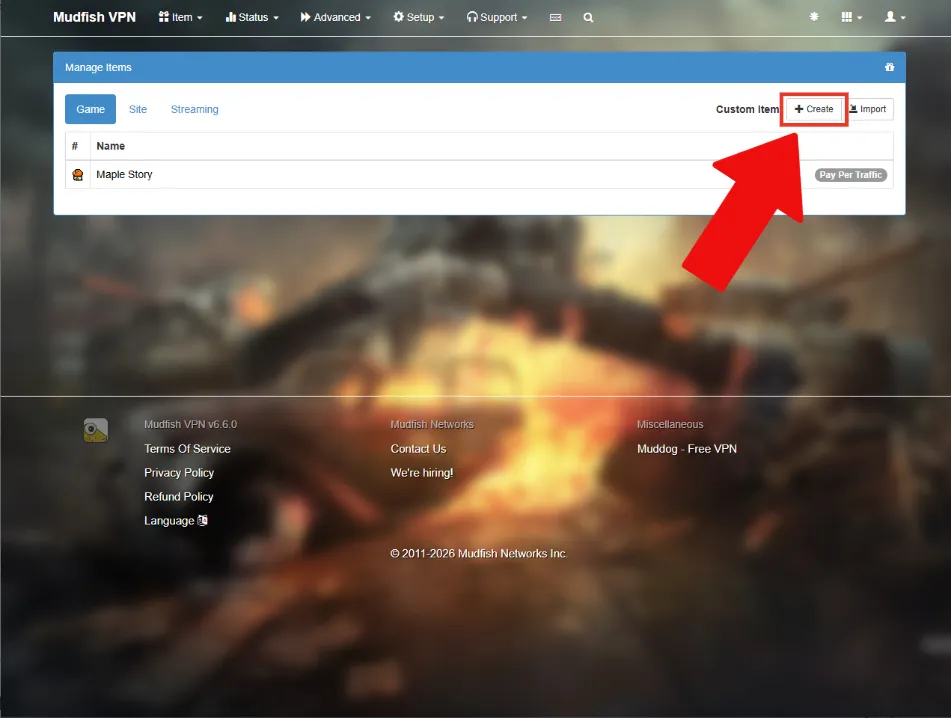
Click Create to make a new item.
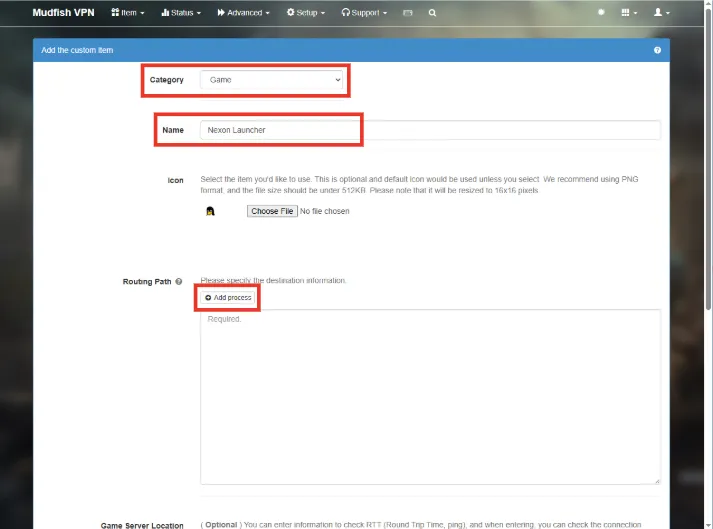
Set Category to Game and Name to Nexon Launcher, then click Add process.

Open the Nexon Launcher and wait for it to finish loading.
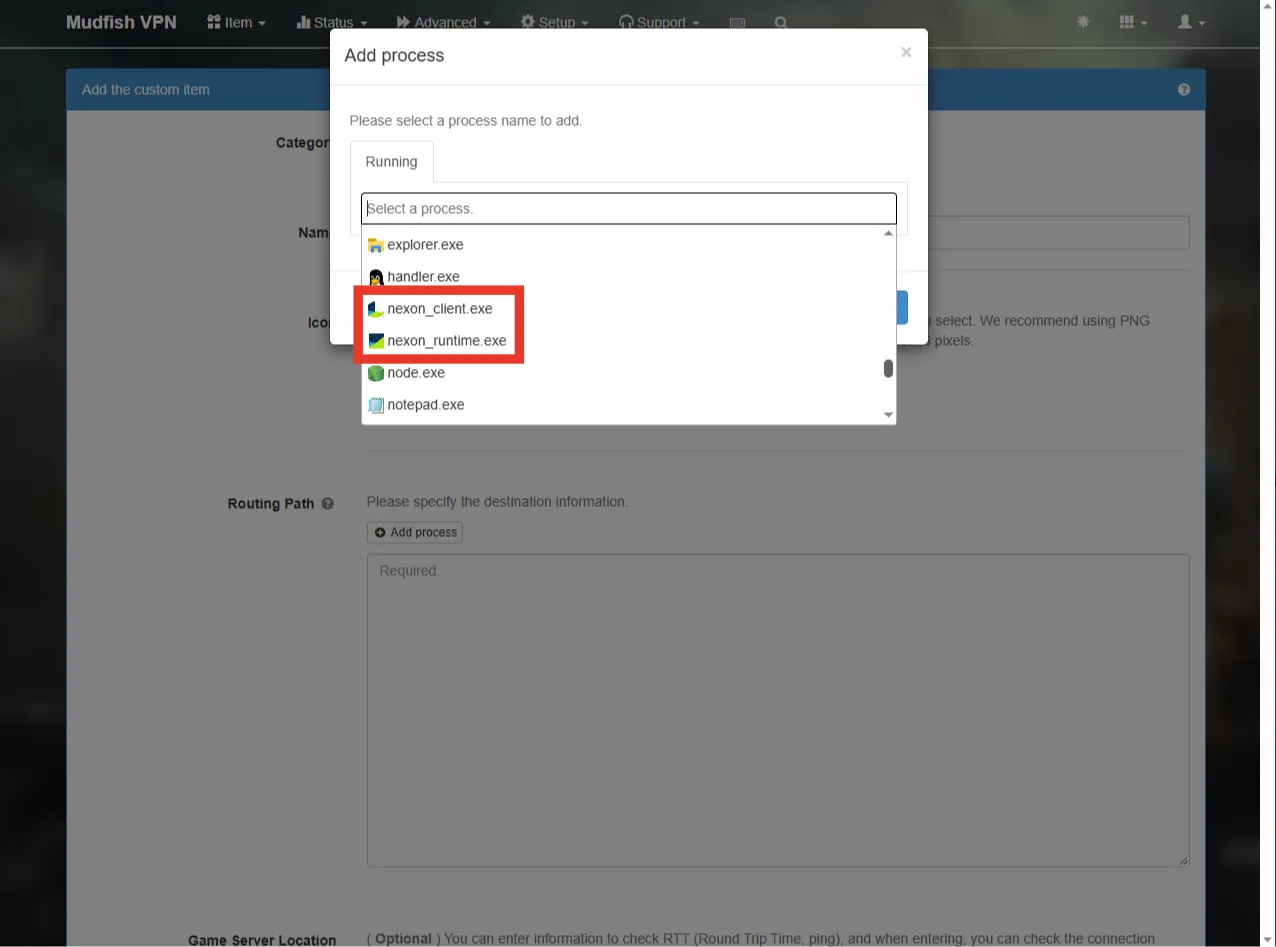
Select the two processes that belong to the Nexon Launcher.
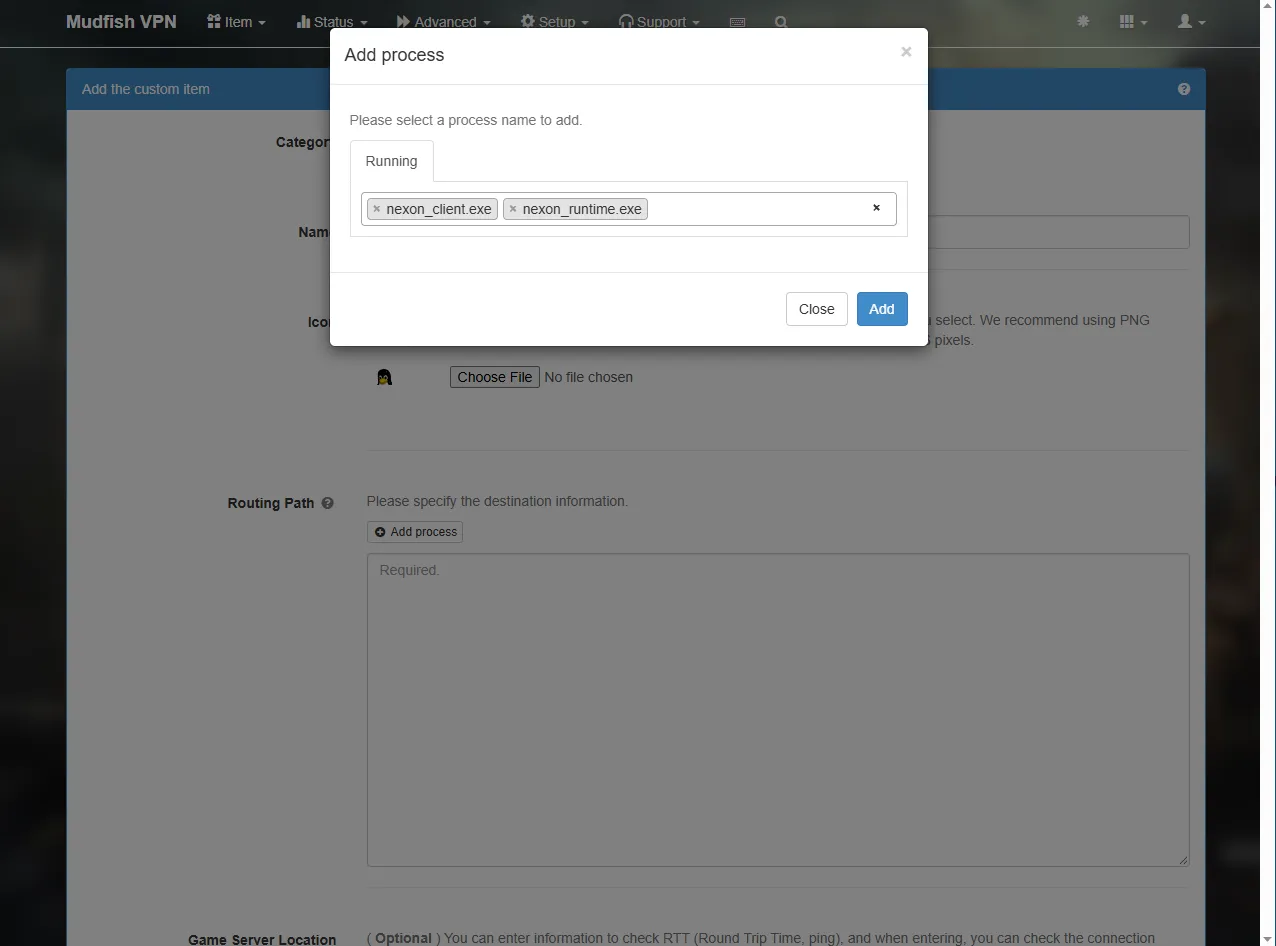
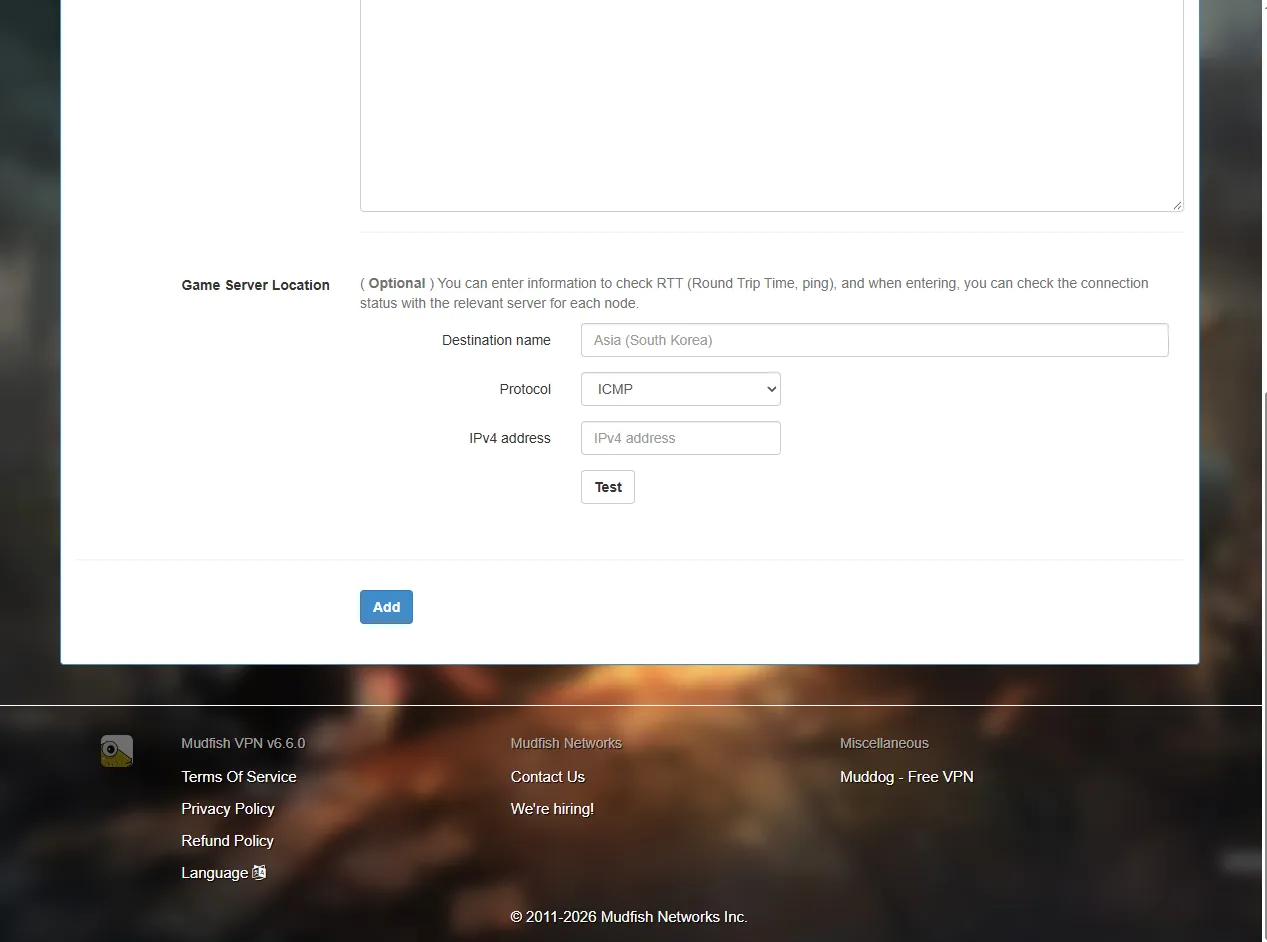
With both selected, click Add.
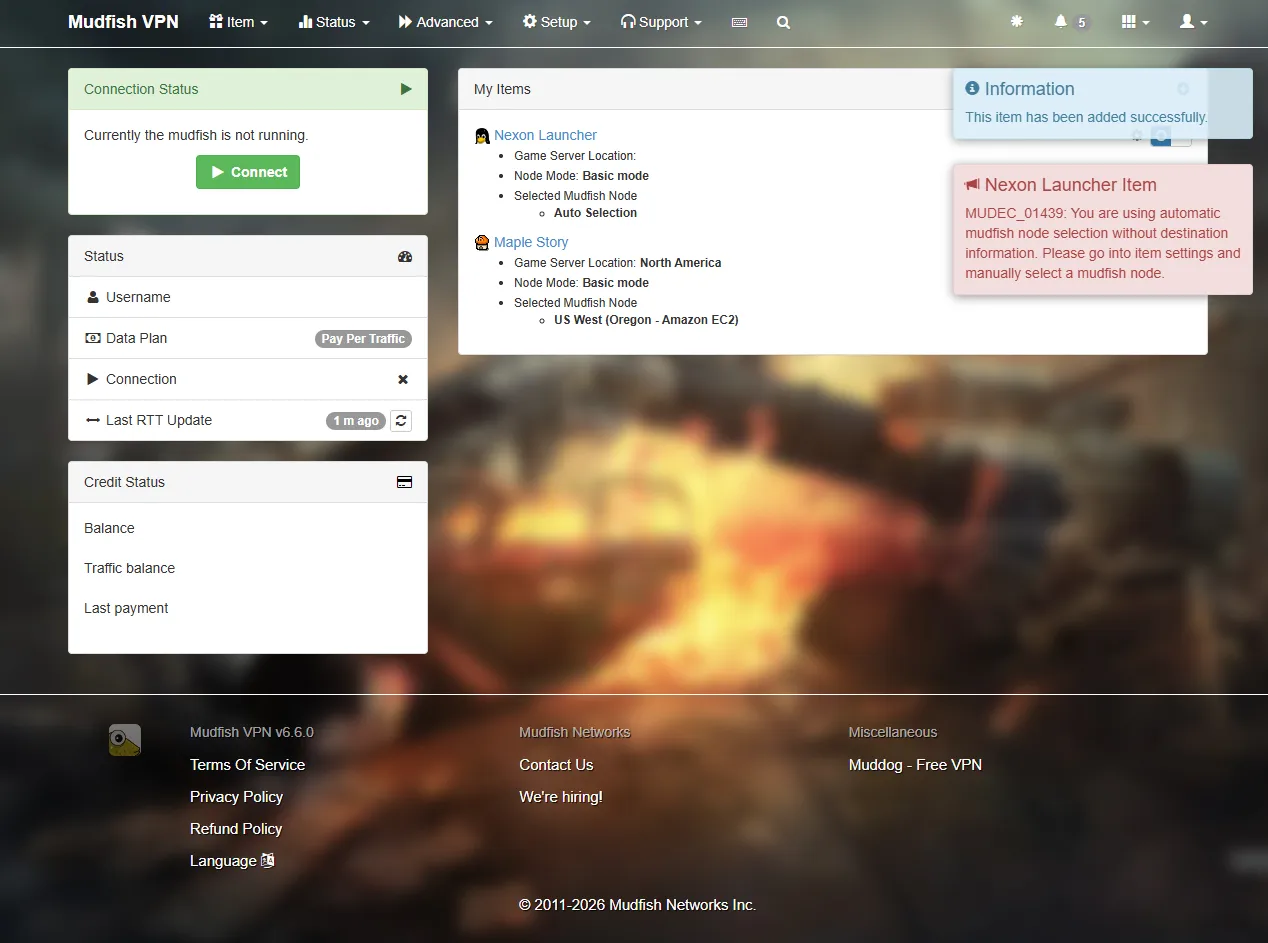
You can continue to the next setting even if a red warning appears.
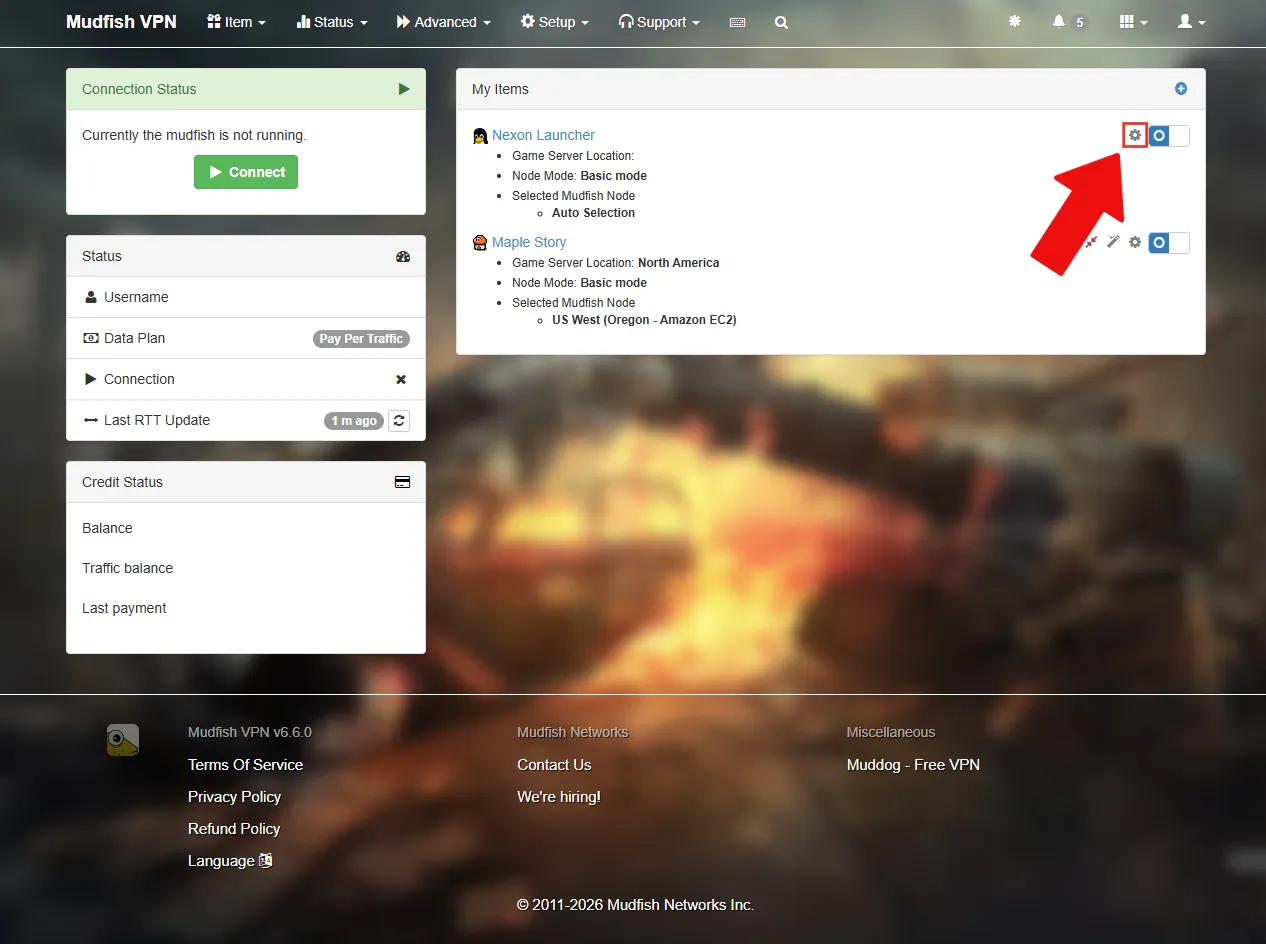
Click the gear icon next to Nexon Launcher.
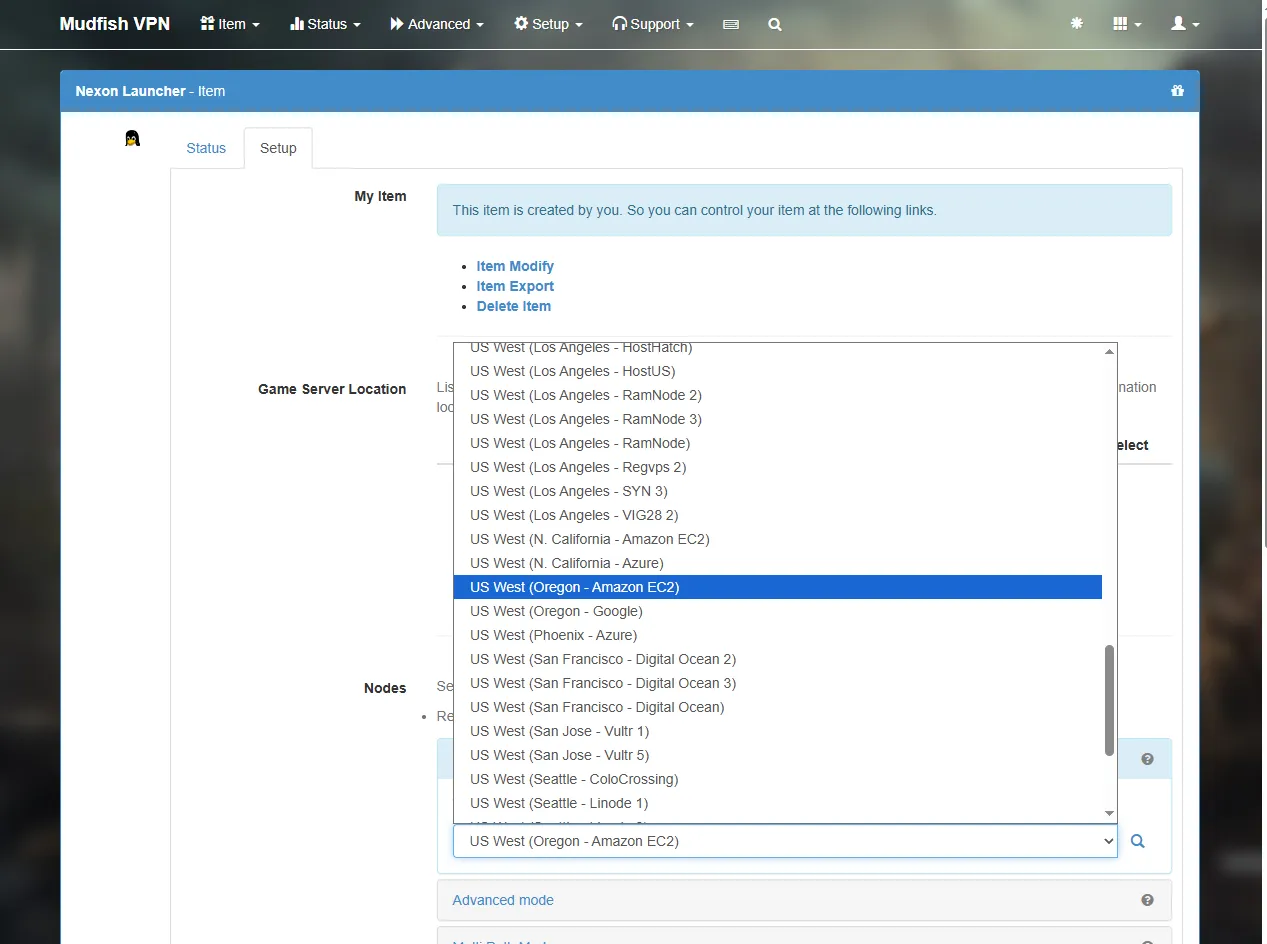
Under Nodes, choose one of the US relay nodes.
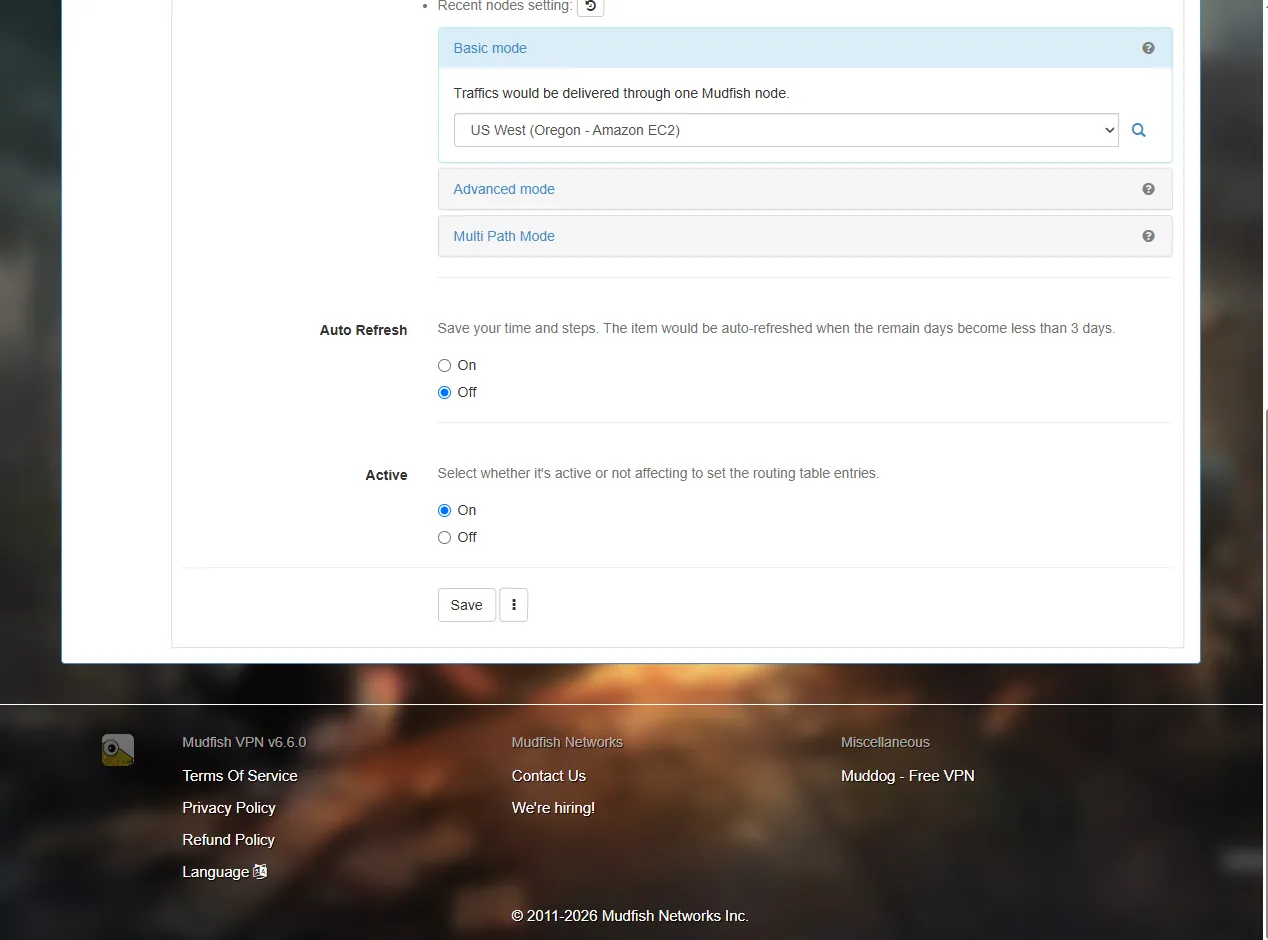
Save the settings.
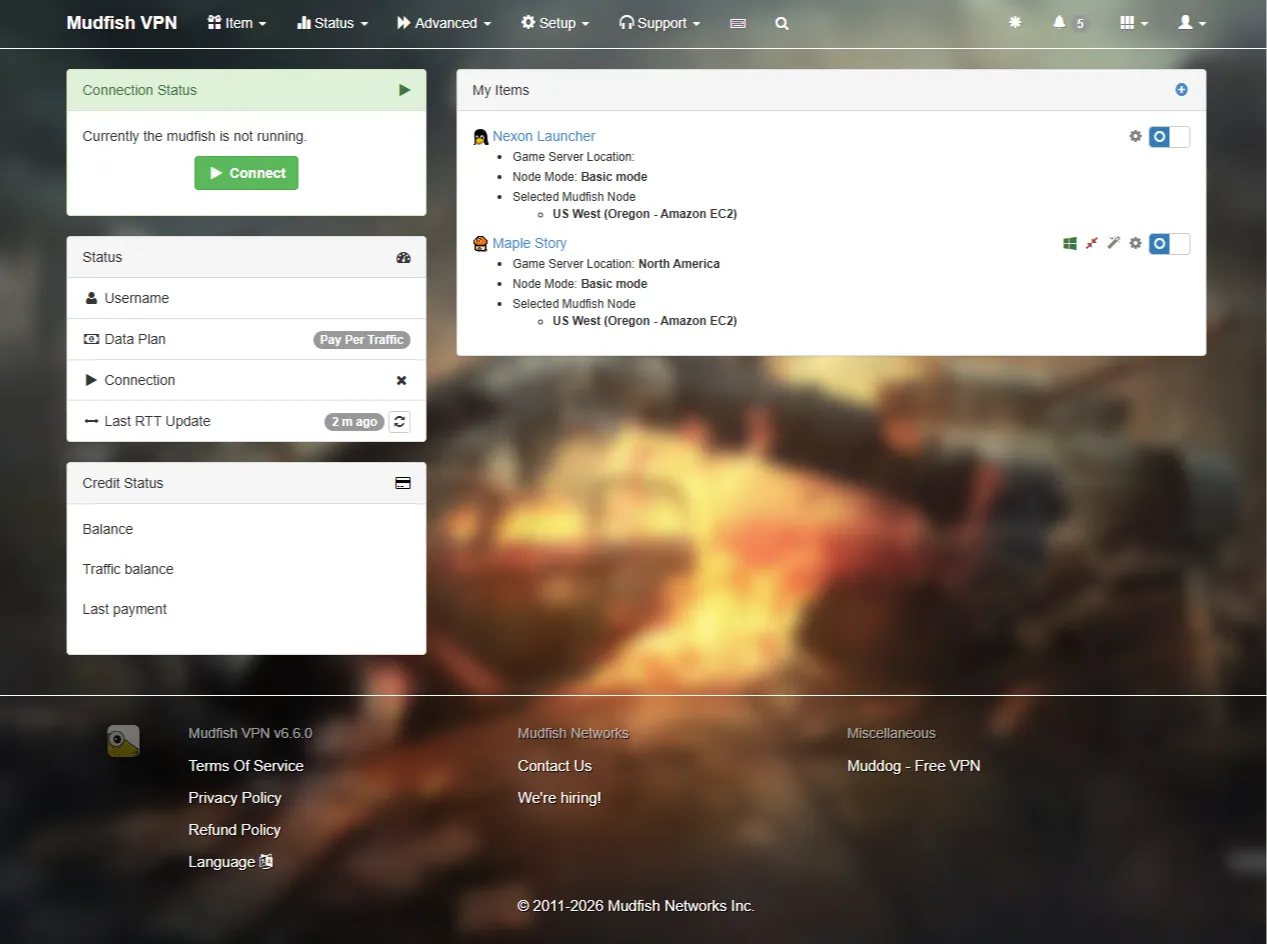
You’re all set. Click Connect in the upper left to connect to the VPN, then launch MSCW. You can leave the Nexon Launcher item switched off unless you need it.
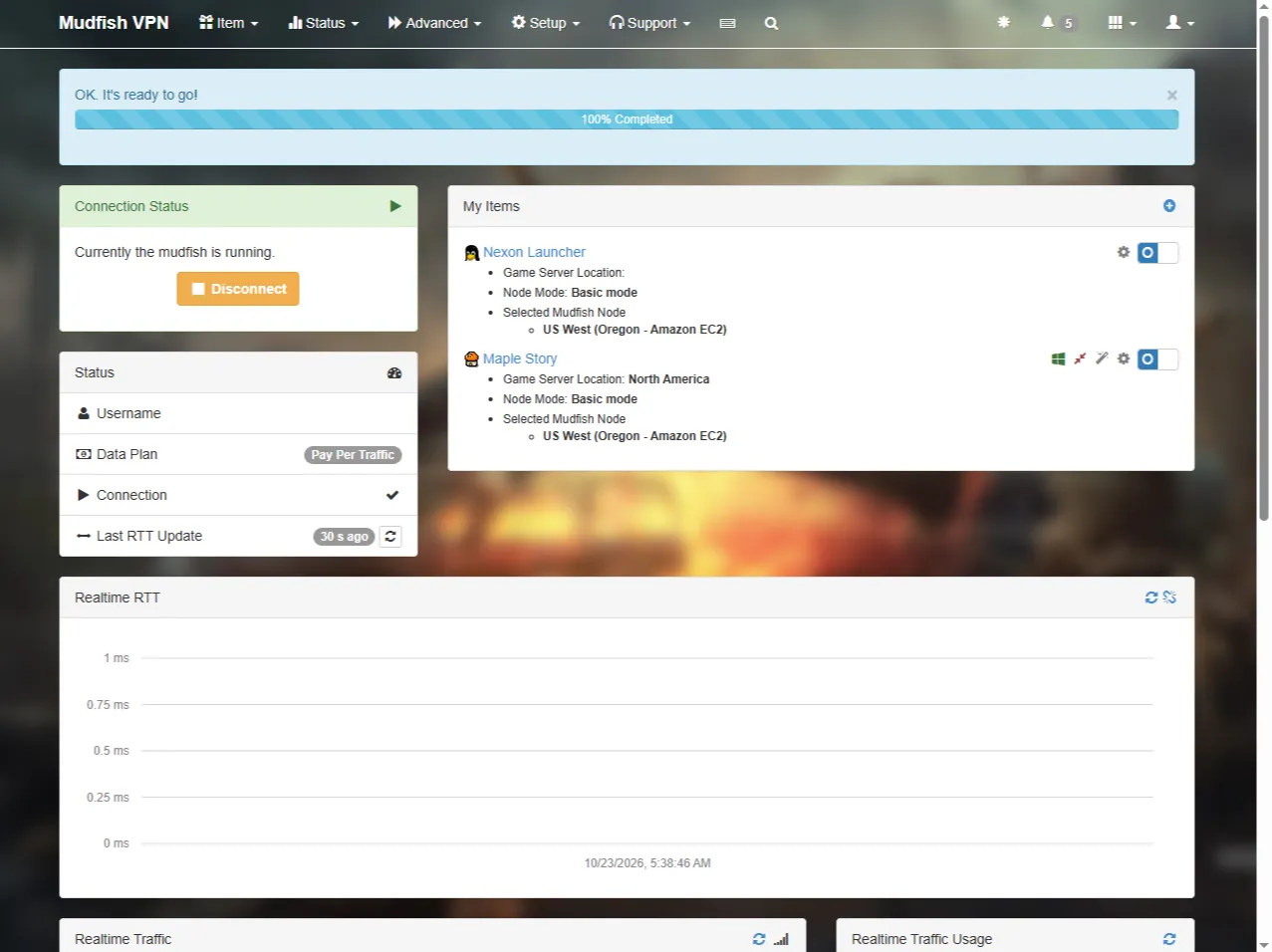
This is what an active VPN connection looks like.
I recommend using the auto-selection button to choose a fresh relay node each time you start MSCW. The selected node can change from one session to the next.
4. ExitLag
ExitLag is probably the first name many players think of when they hear “gaming VPN.” Unlike Mudfish, it uses a recurring subscription, with plans for one person or a group.
4.1. ExitLag Costs
ExitLag offers three plans: Solo, Duo, and Squad.
- Solo → For one player
- Duo → For two players: the payer and one guest
- Squad → For five players: the payer and four guests
With Duo and Squad, one person pays and invites the others. Guests must be in the same country as the payer [8].
Each plan can be bought monthly, quarterly (three months), or annually (one year).
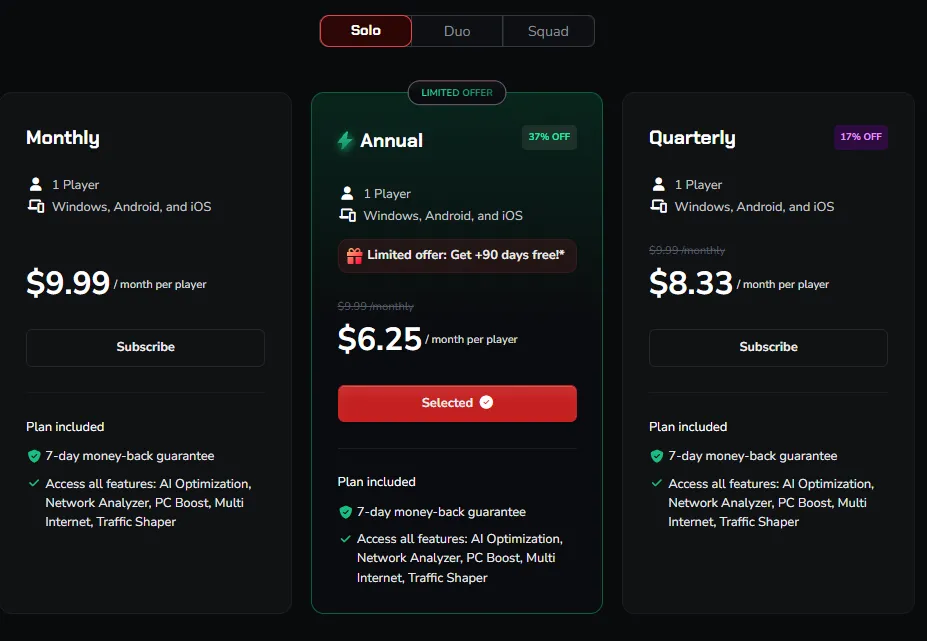
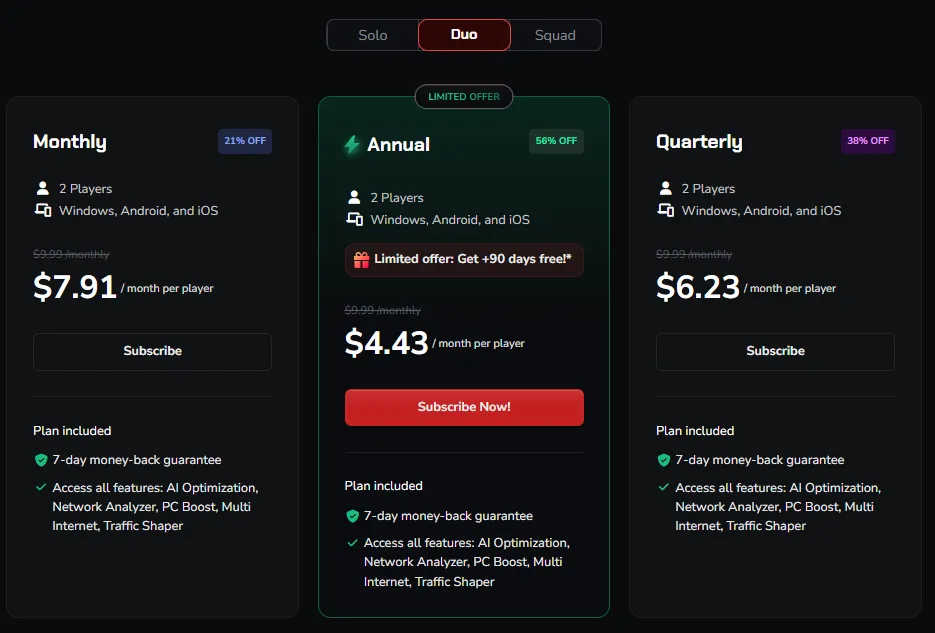
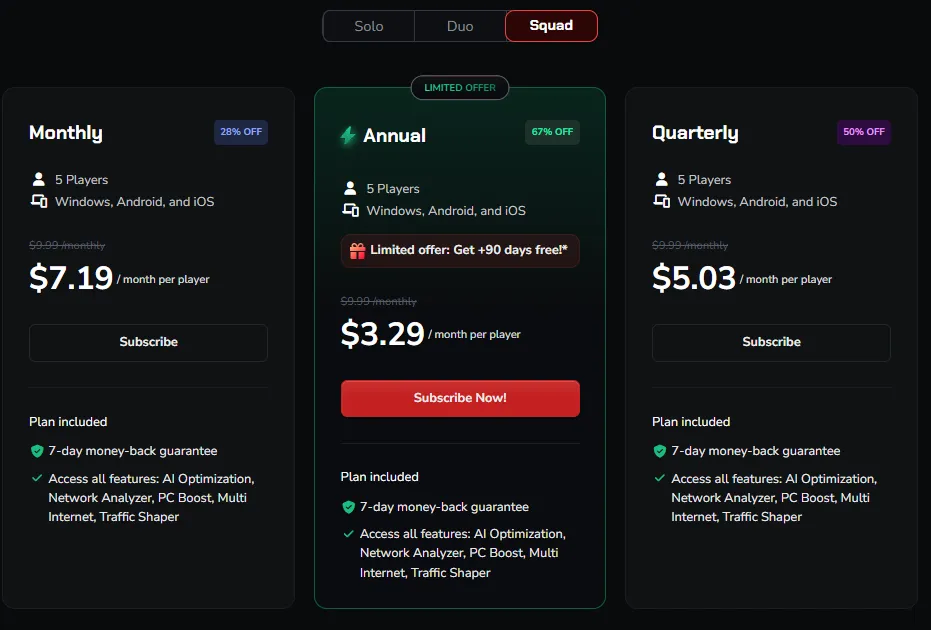
The following table shows the USD monthly amount per person displayed on October 22, 2026, assuming Duo or Squad is filled and its cost is split equally:
| Subscription term | Solo | Duo (per person) | Squad (per person) |
|---|---|---|---|
| Monthly | $9.99 | $7.91 | $7.19 |
| Quarterly | $8.33 | $6.23 | $5.03 |
| Annual | $6.25 | $4.43 | $3.29 |
These are monthly equivalents. At checkout, you pay for the full subscription term you choose. If you’re unsure how long you’ll play MSCW and subscribe for about three months, even a full Squad plan costs more than Mudfish or FixPing.
Check ExitLag’s pricing page for the amount you would actually pay now.
4.2. ExitLag Performance
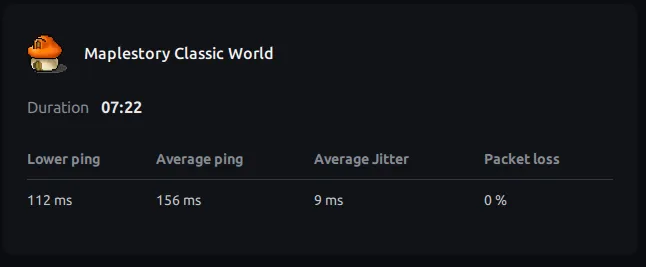
I tested from Korea at 18:00 UTC after choosing the lowest-latency server. ExitLag itself reported a minimum of 112 ms and an average of 156 ms.
Other Korean players using ExitLag told me they usually see around 110–130 ms. Their experience differs from my own readings, but even latency in that range would make the game quite comfortable to play.
4.3. Set Up ExitLag
As with Mudfish, I’ll first route MapleStory Classic World through ExitLag and then add the Nexon Launcher if needed. Steam can be configured similarly, so I won’t walk through it separately.
Download and install the program from the ExitLag download page.
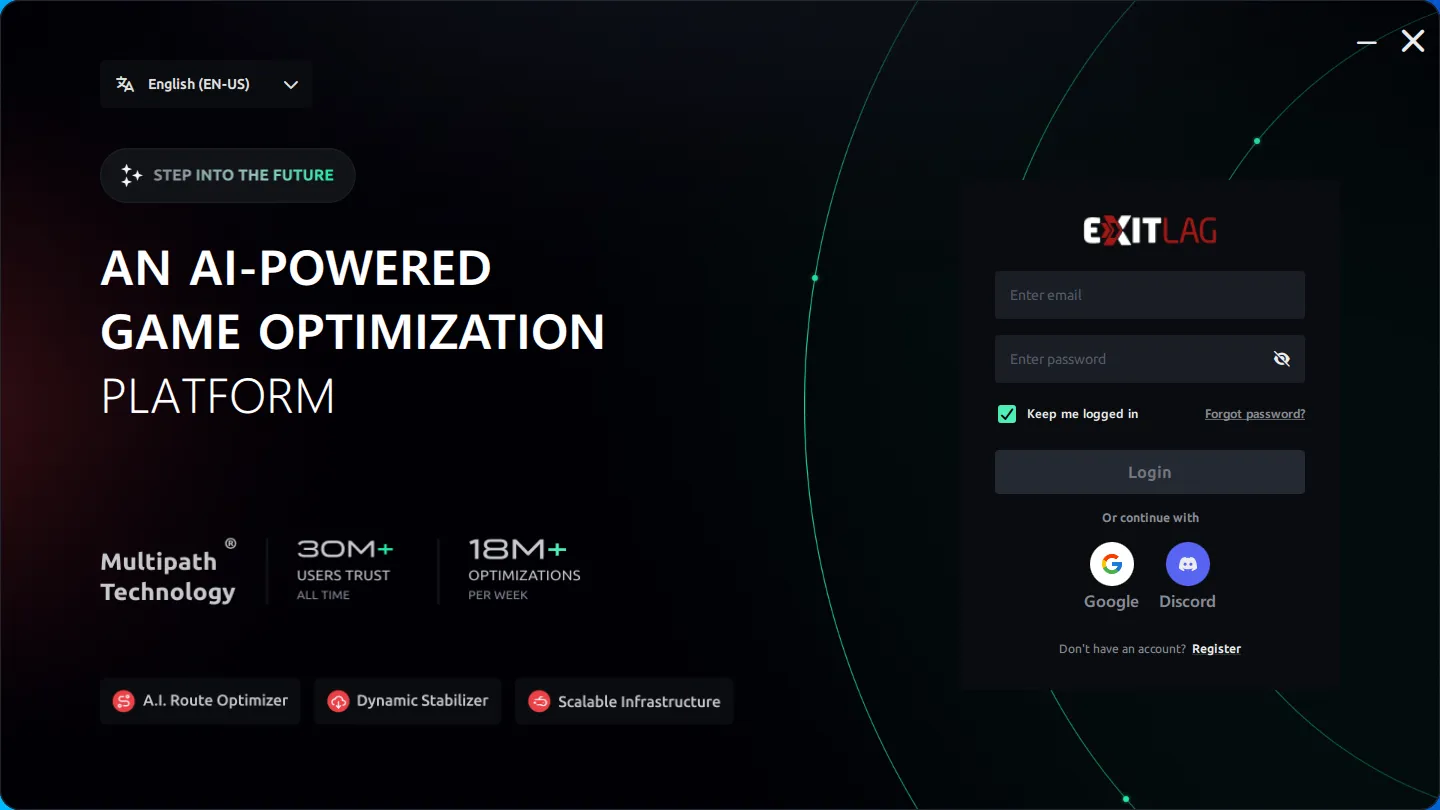
Open ExitLag and log in. If a tutorial appears, you can follow it. If you skipped it, use the steps below.
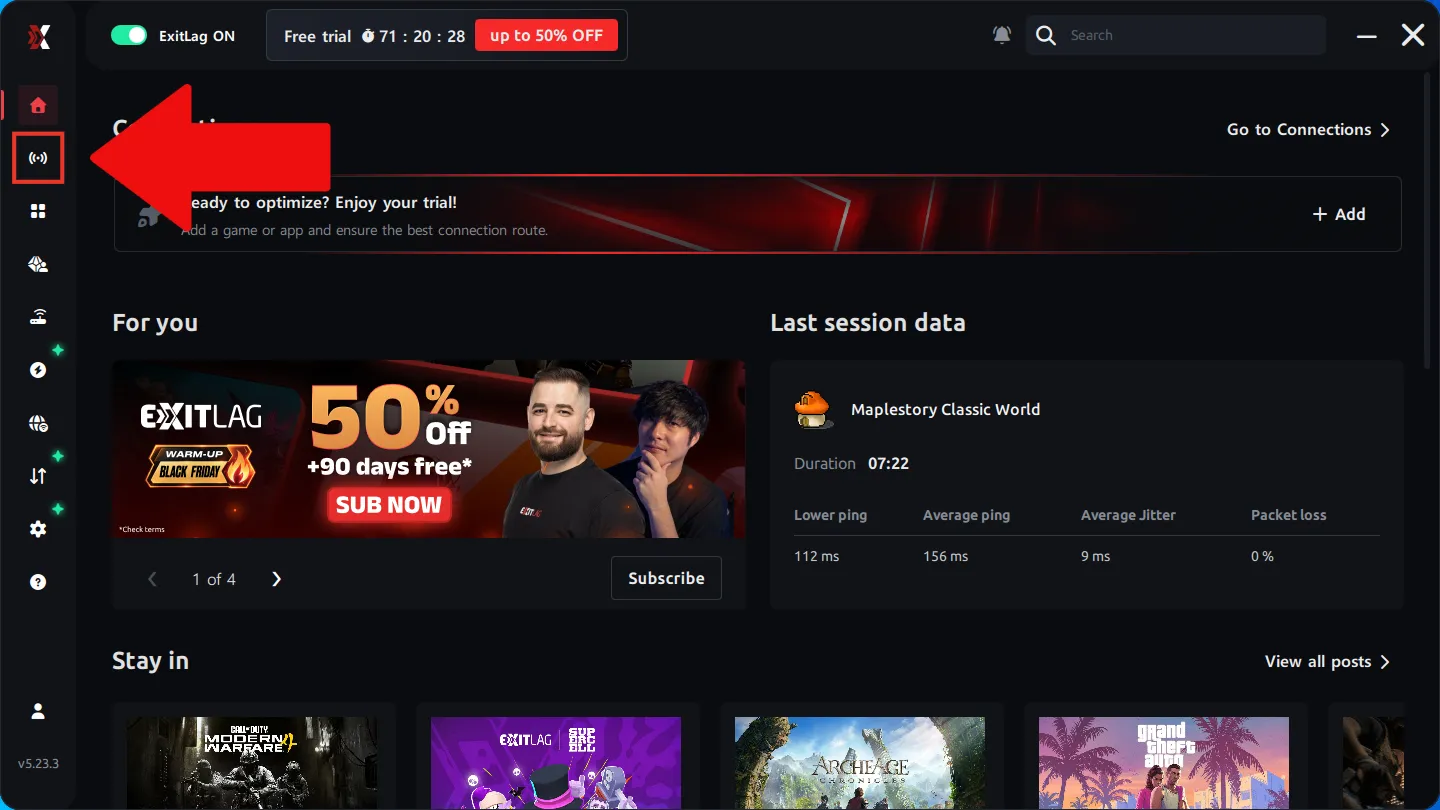
Select Connections, the second item in the left sidebar, then follow the screens in order.
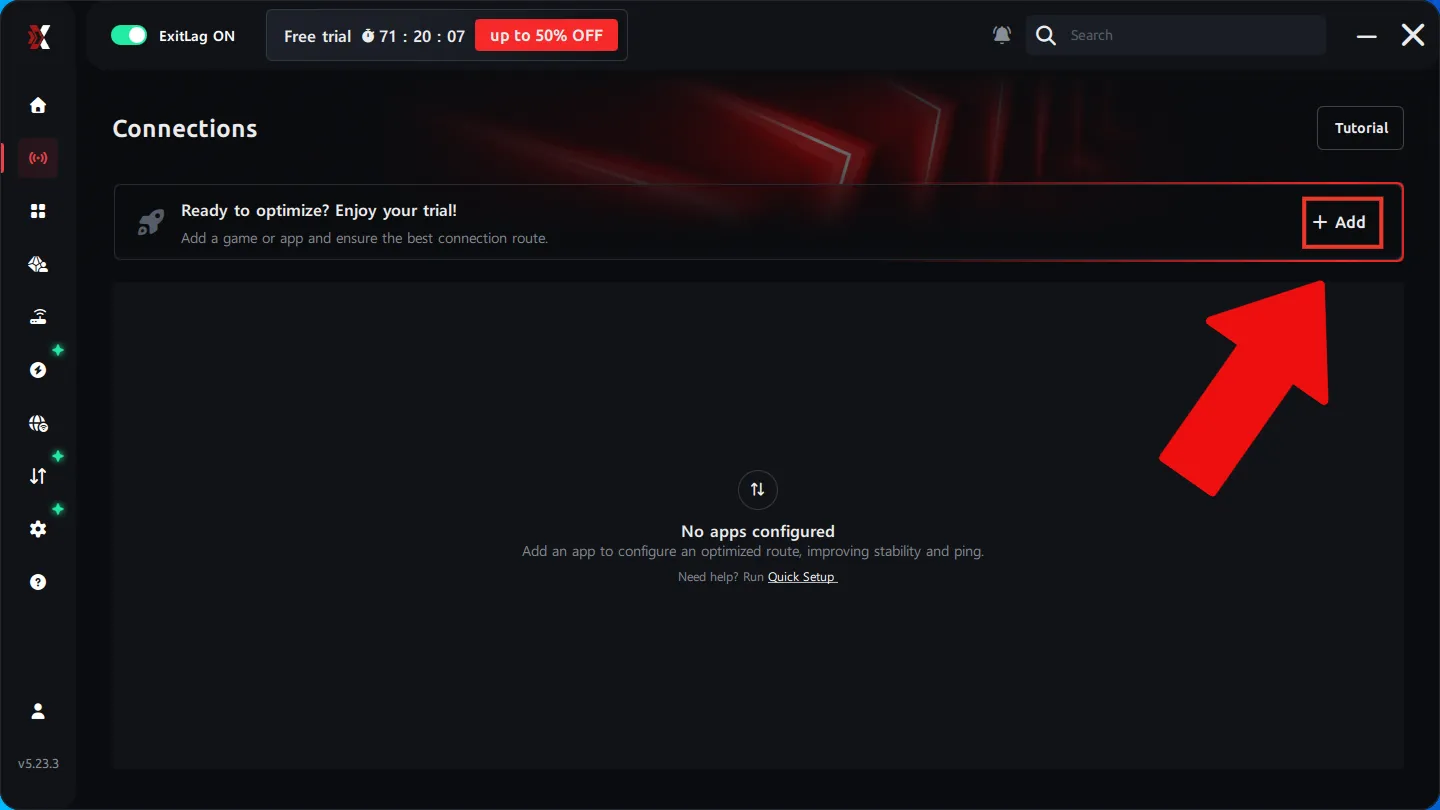
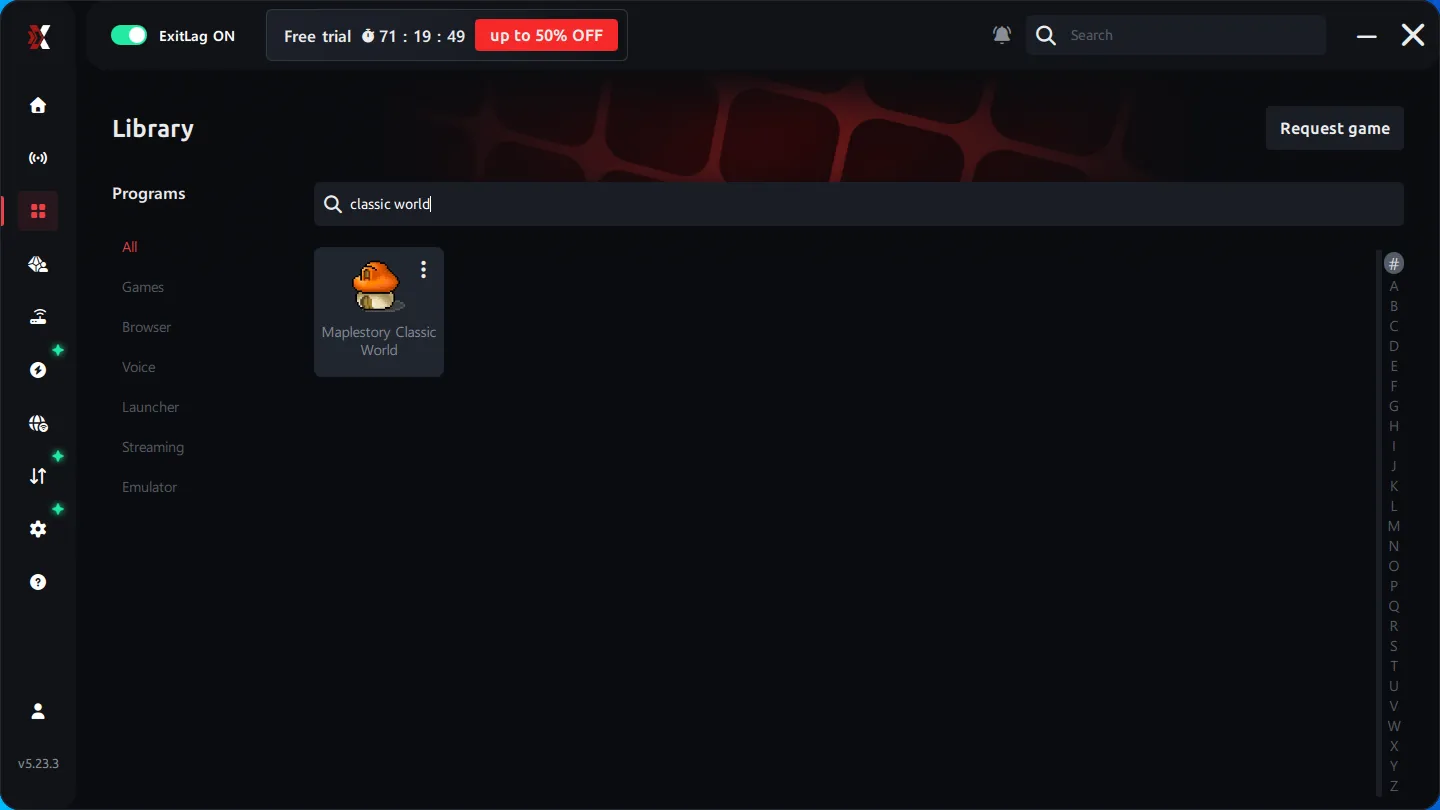
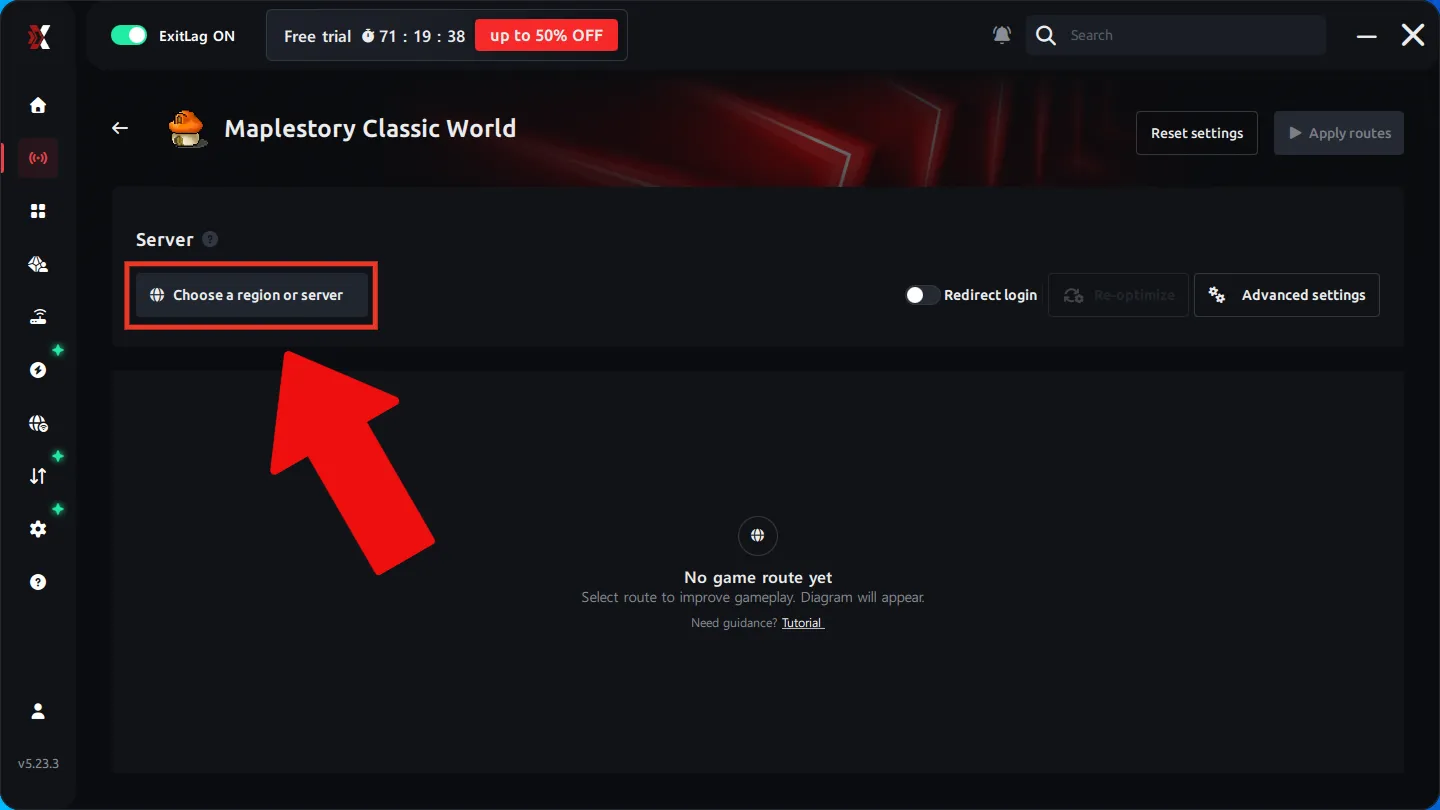
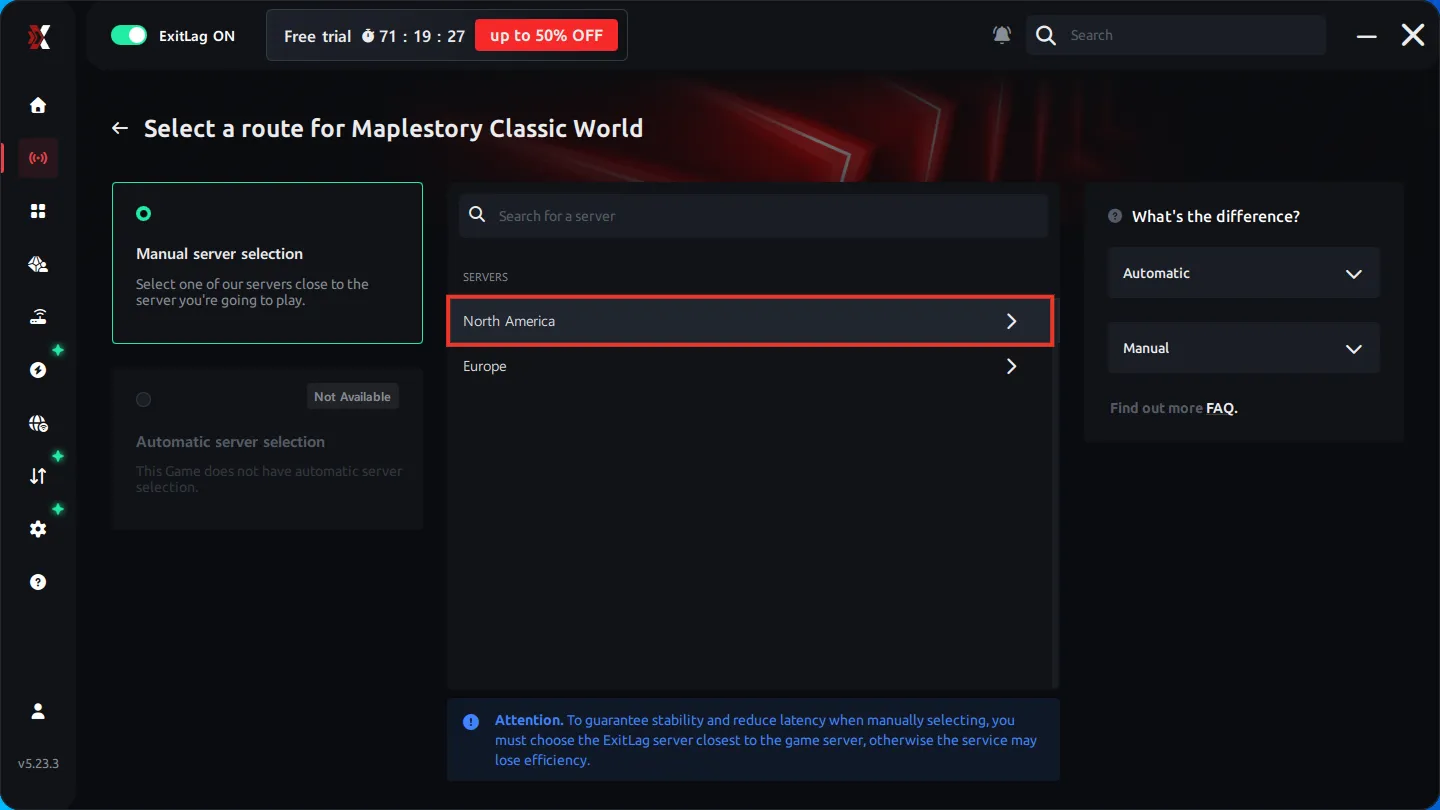
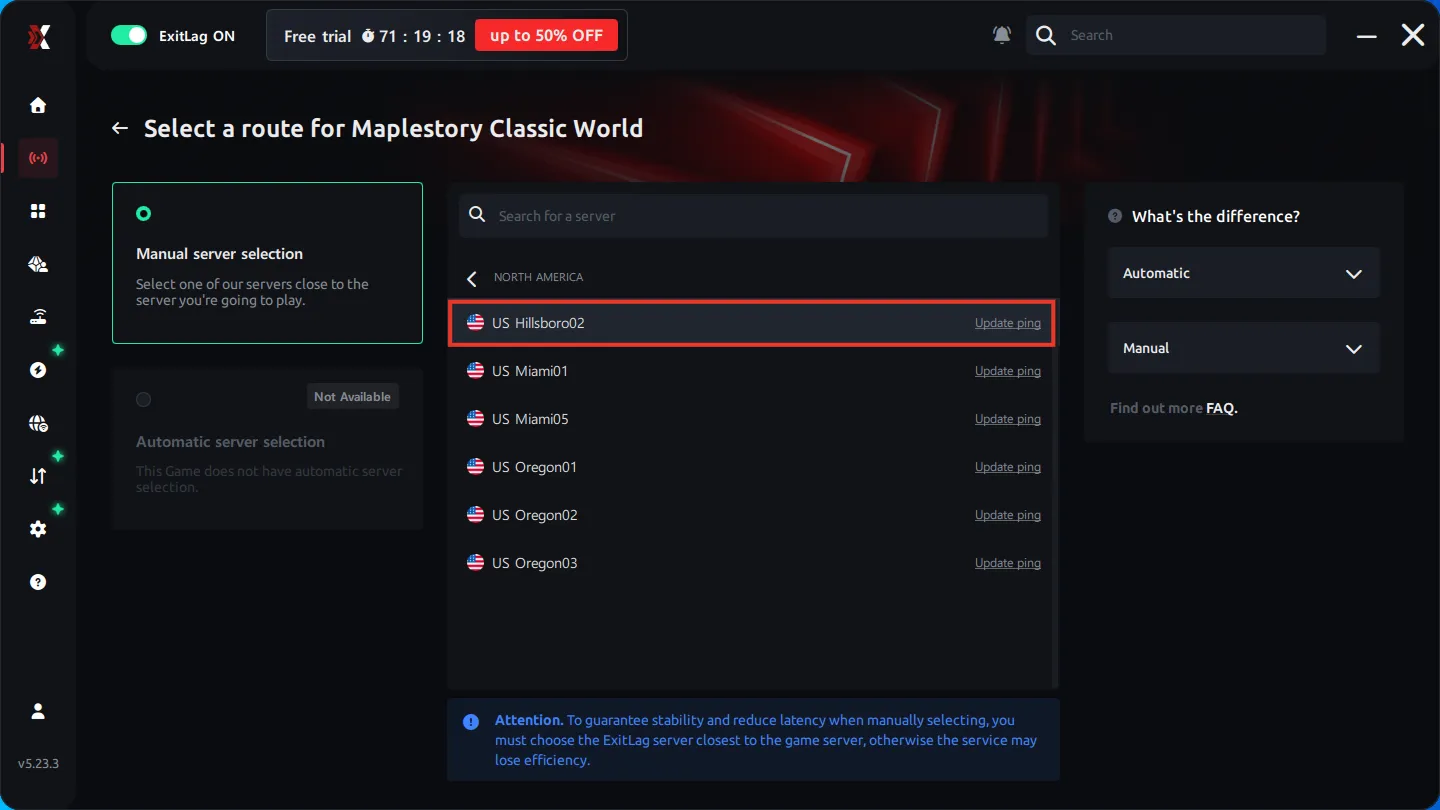
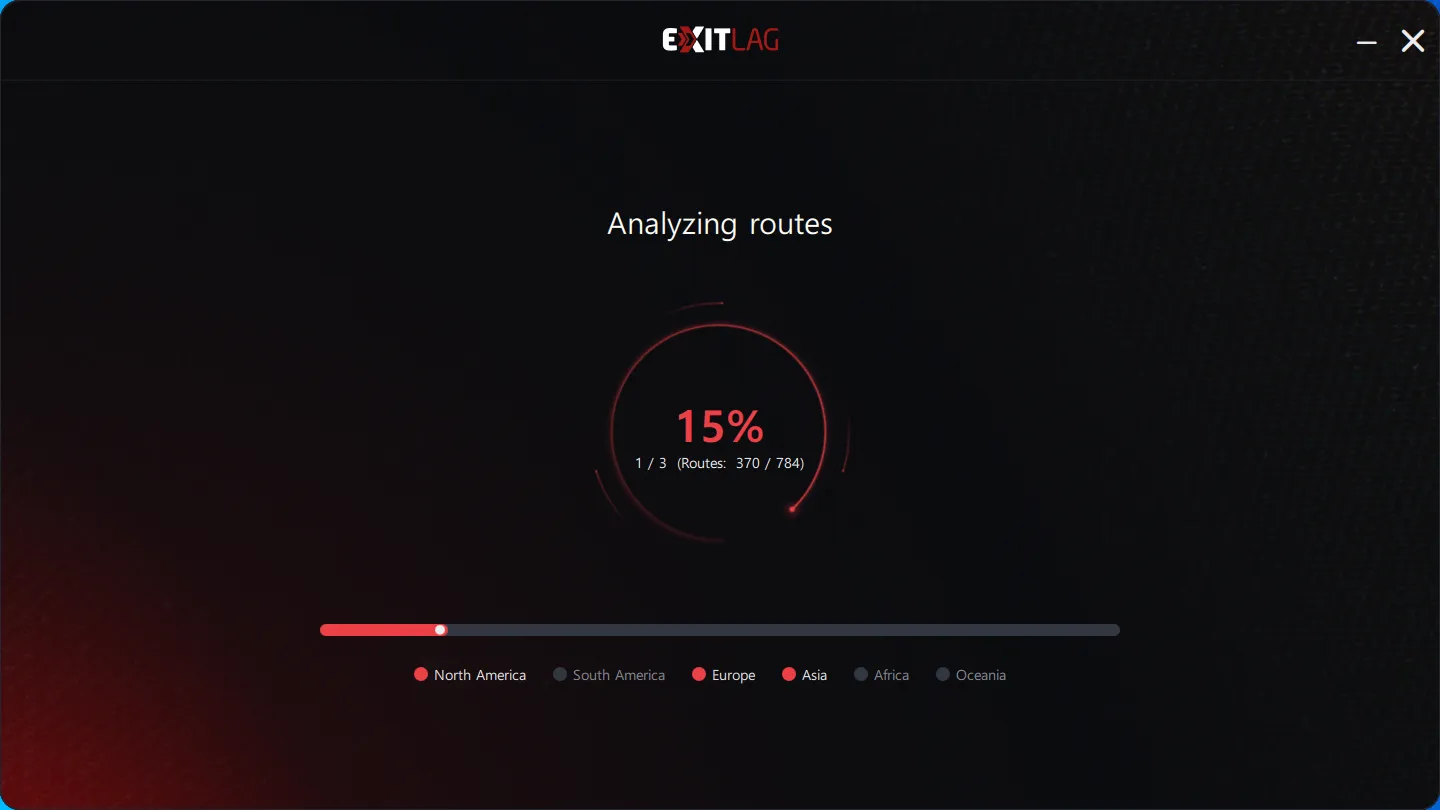
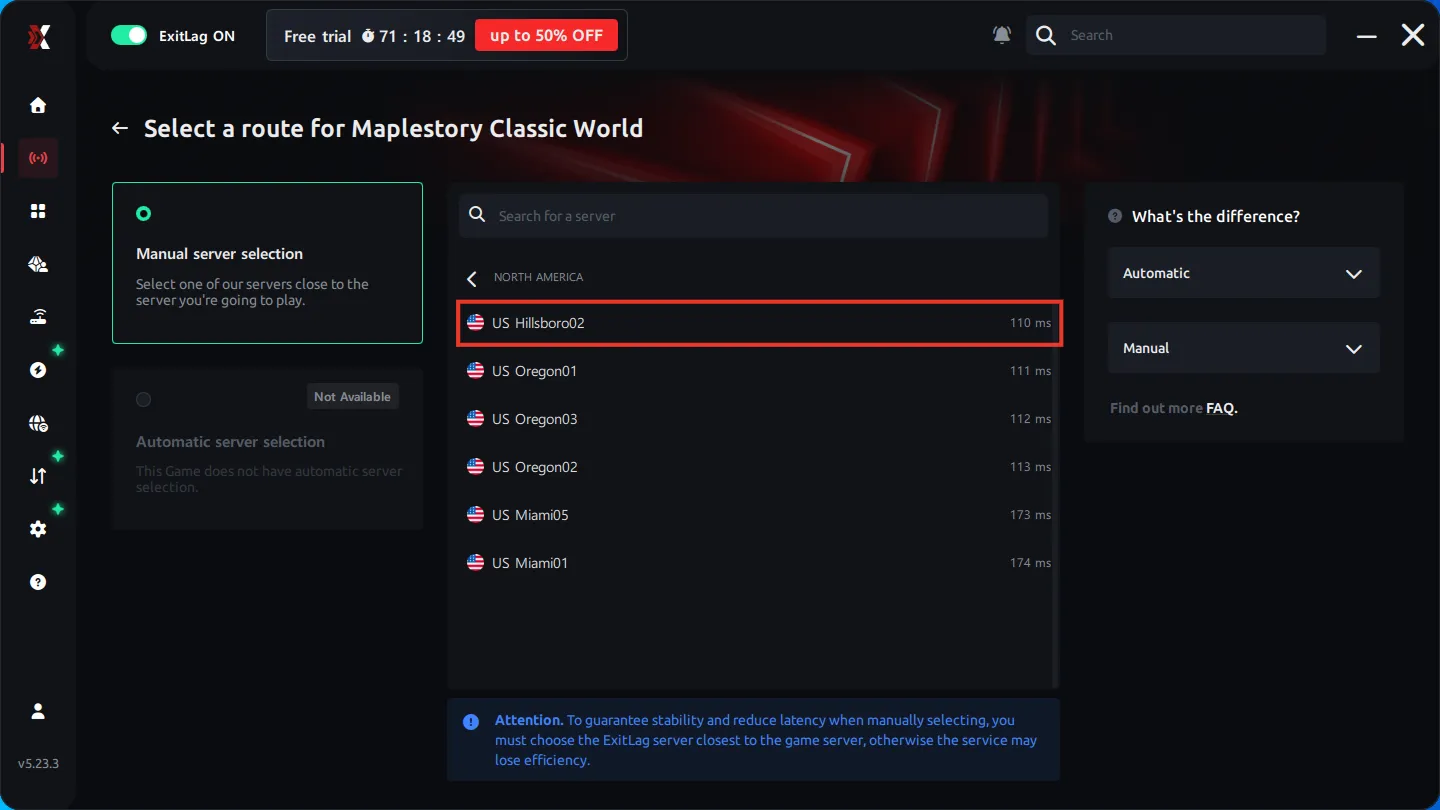
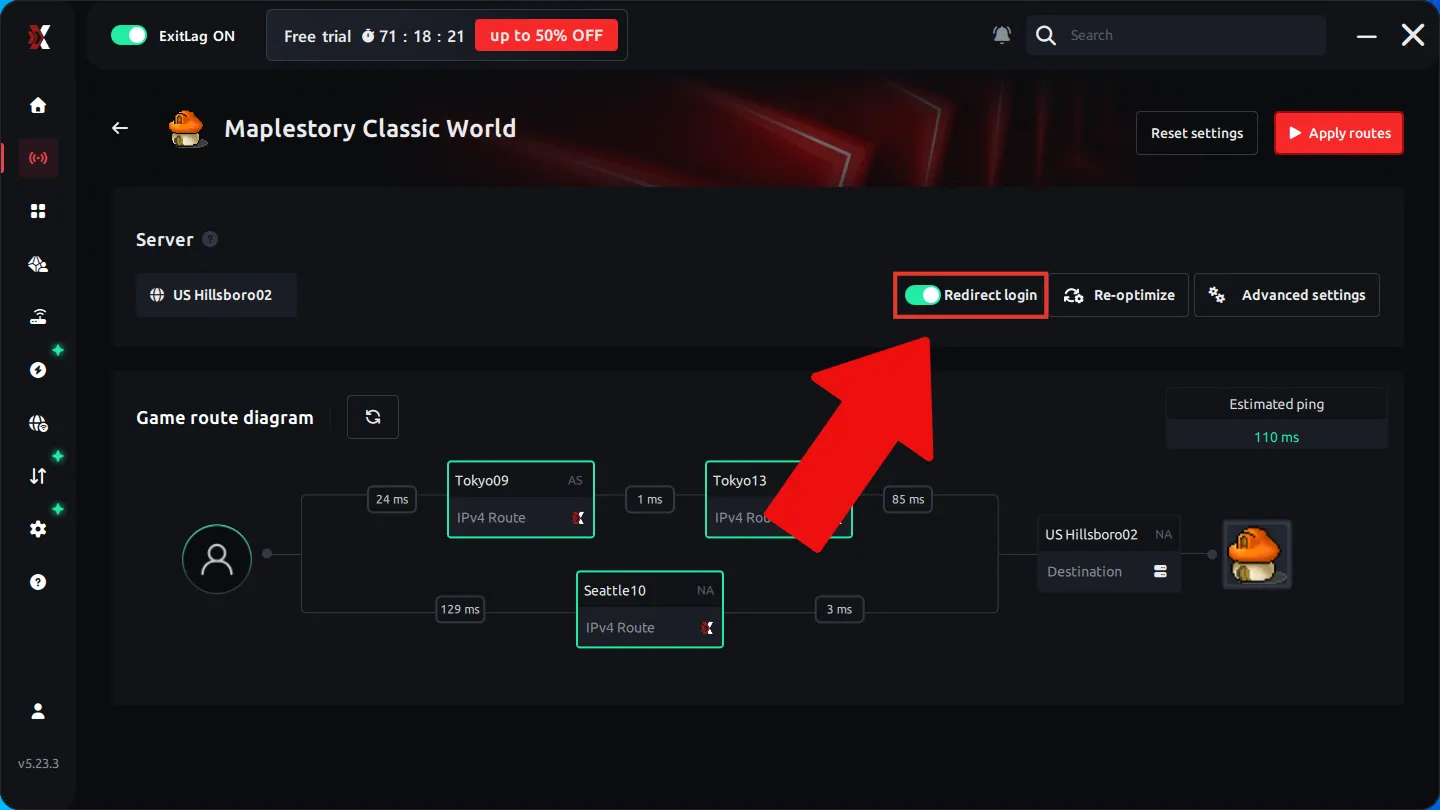
Be sure to turn on Redirect login on this screen.
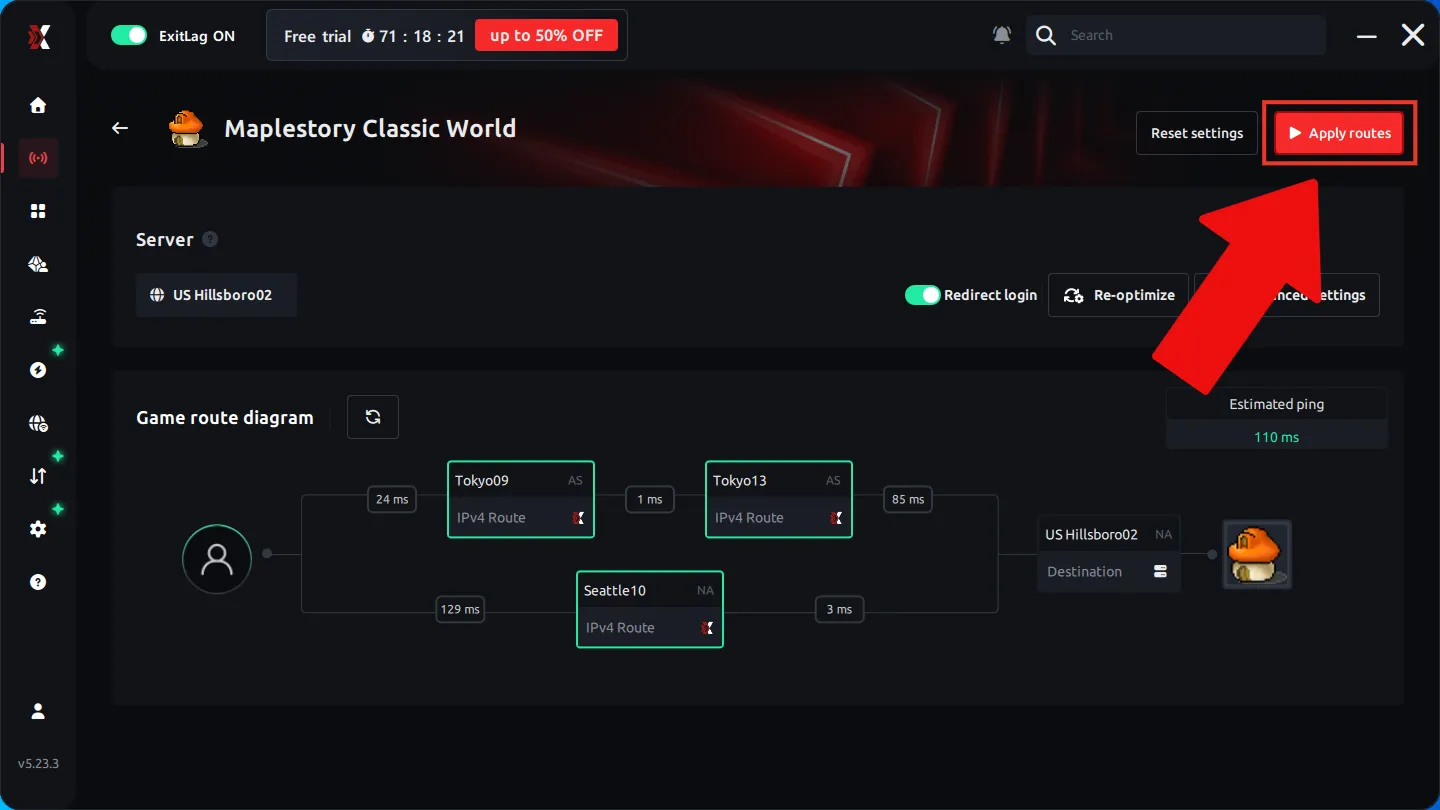
Click Apply routes to finish configuring the VPN for MapleStory Classic World.
If you also need a VPN for the Nexon Launcher, follow the next screens to add Nexon Launcher.
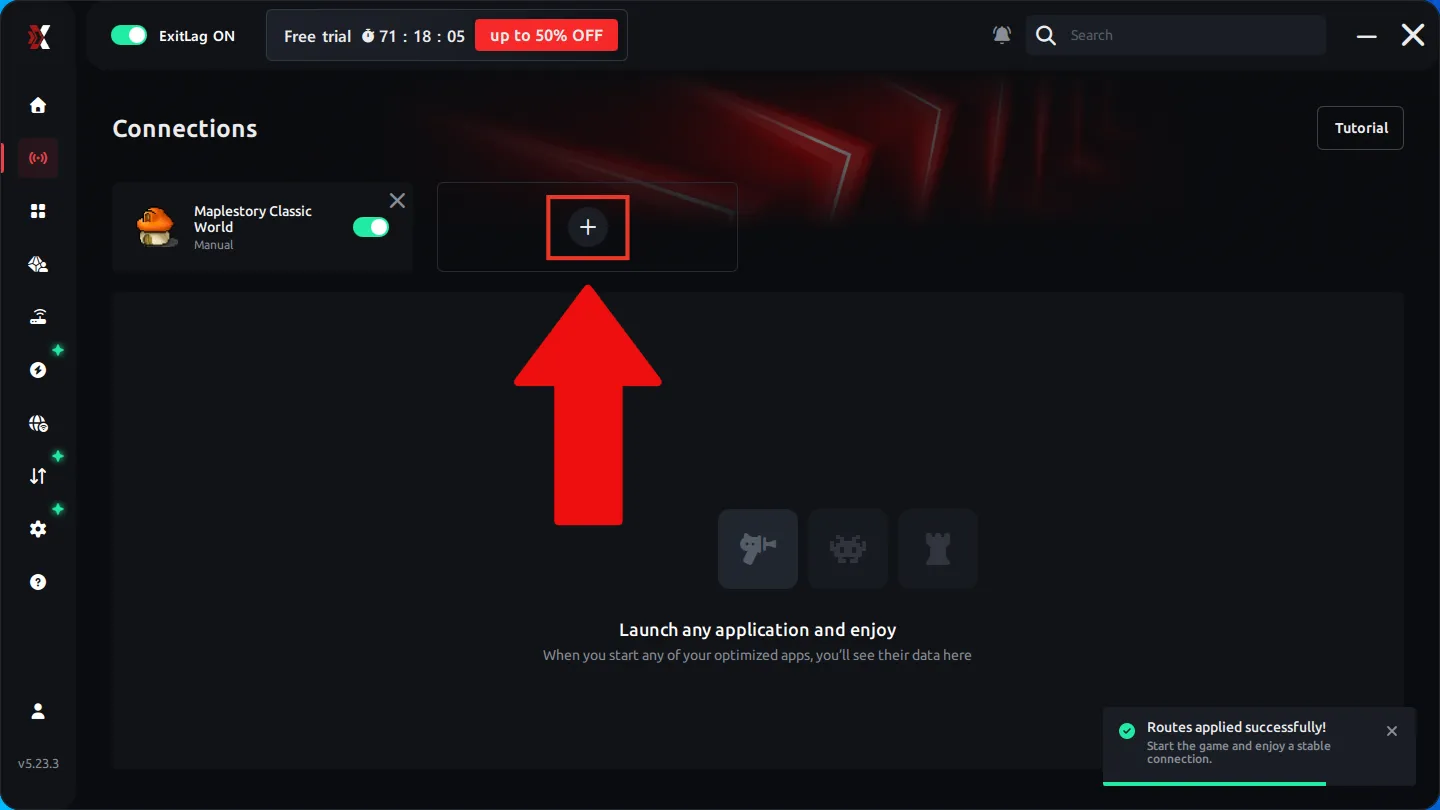
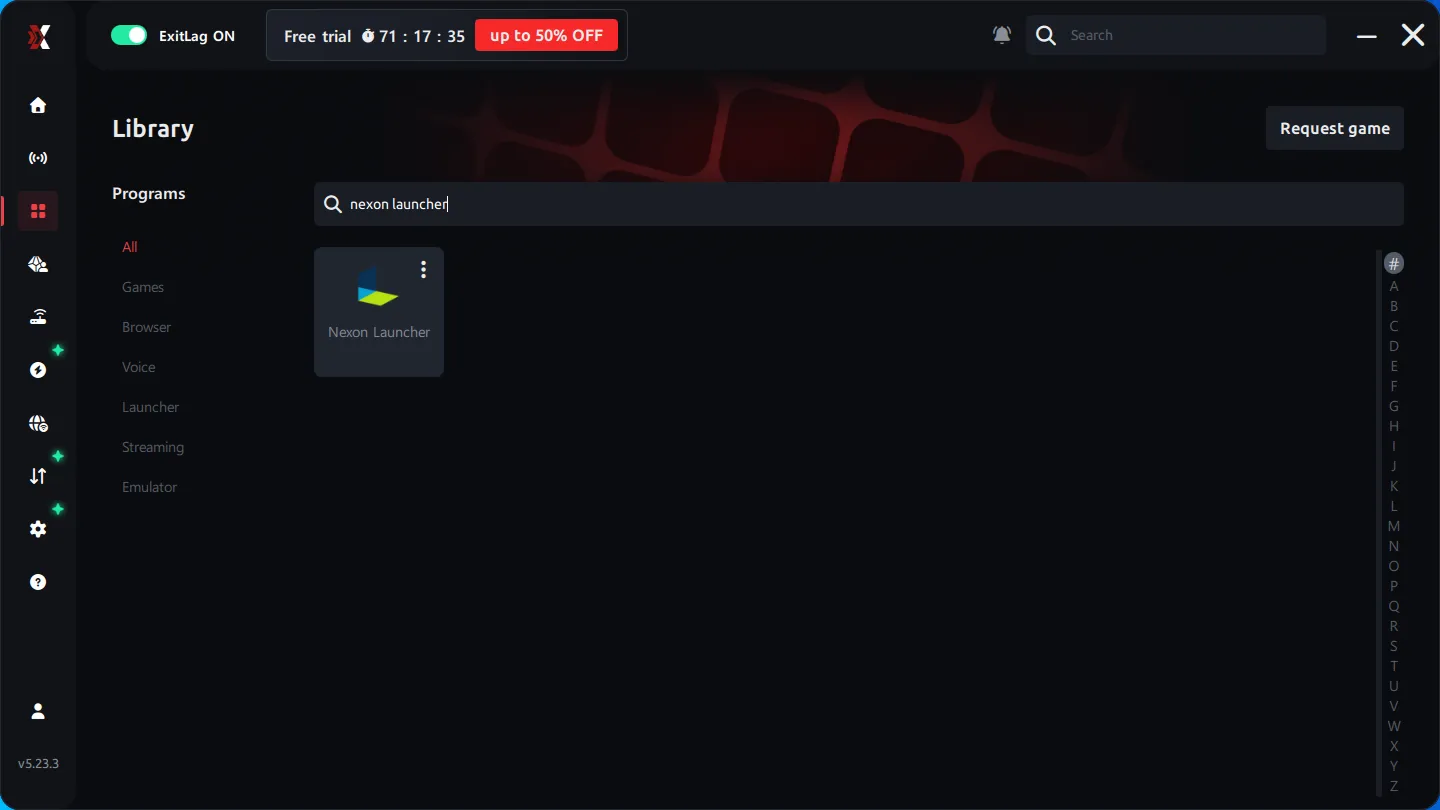
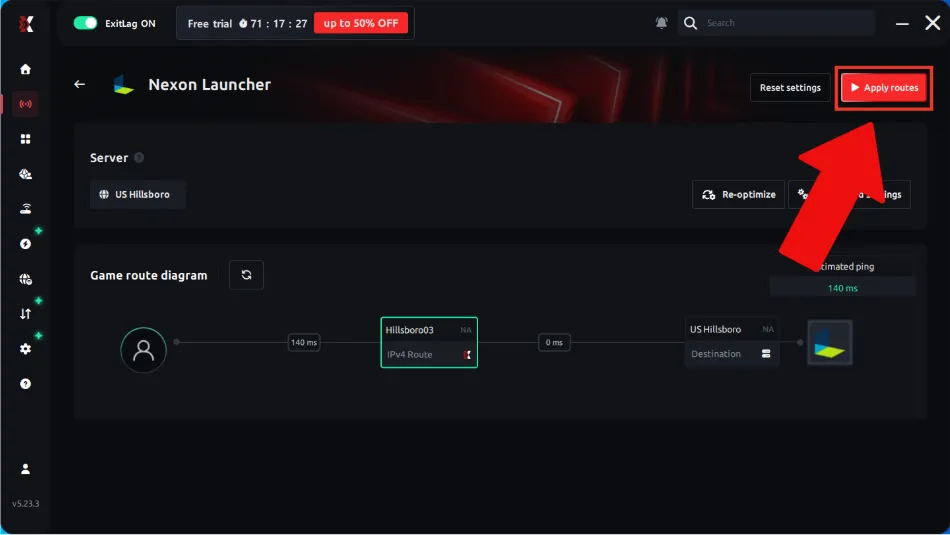
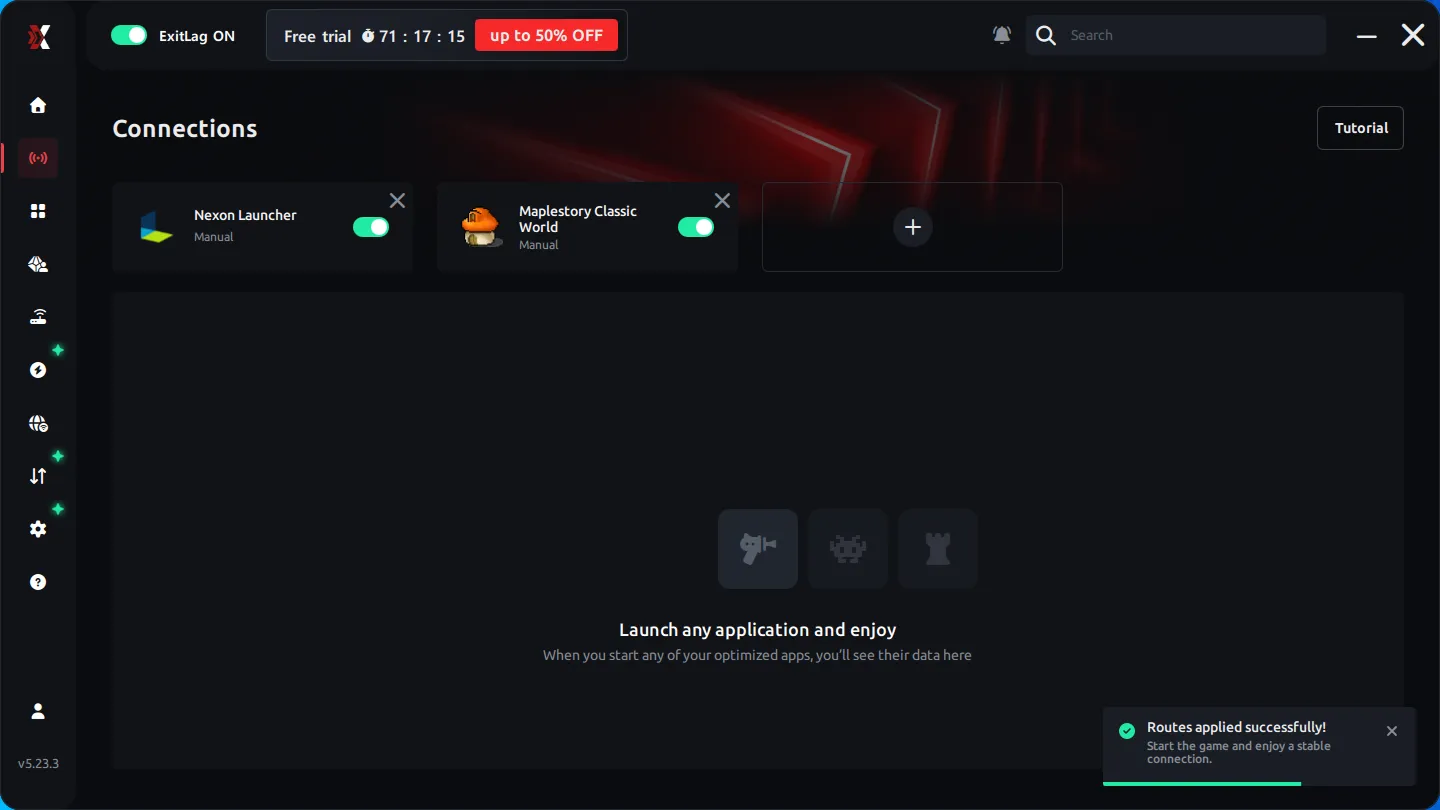
Both MapleStory Classic World and Nexon Launcher are now configured.
5. FixPing
FixPing stands out first for its low price. I initially thought that would be its biggest advantage, but after trying it myself, I found the performance decent too, and the client felt quite lightweight.
5.1. FixPing Costs
FixPing is also subscription-based, but it costs considerably less than ExitLag.
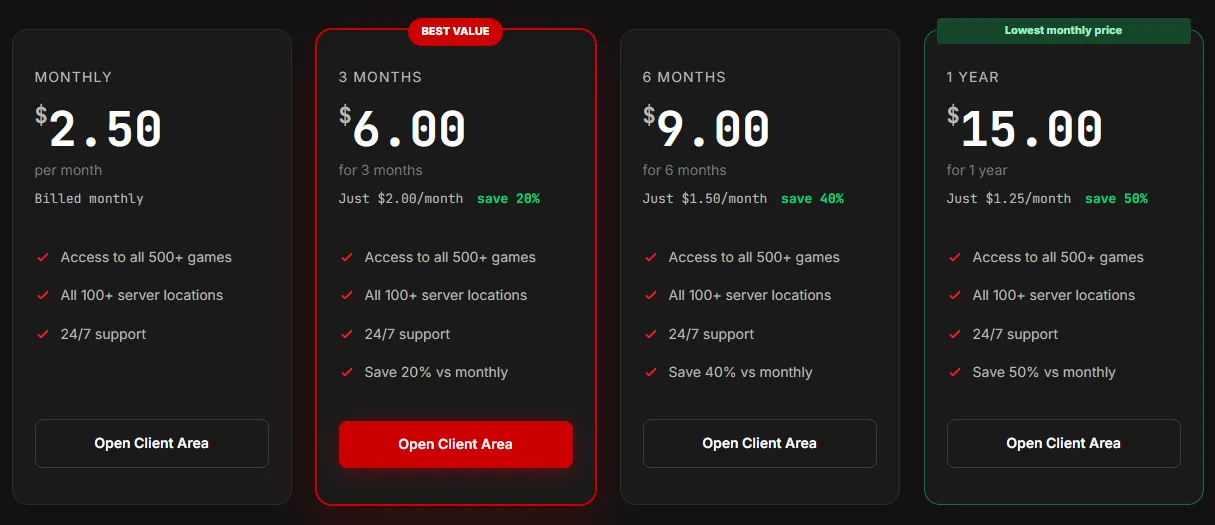
As shown in the USD prices on October 22, 2026, the subscription costs were:
- 1 month → $2.50
- 3 months → $6.00
- 6 months → $9.00
- 1 year → $15.00
These are prices for the entire term, not monthly averages. They’re low enough that you don’t need to calculate a monthly rate to see the difference.
5.2. FixPing Performance
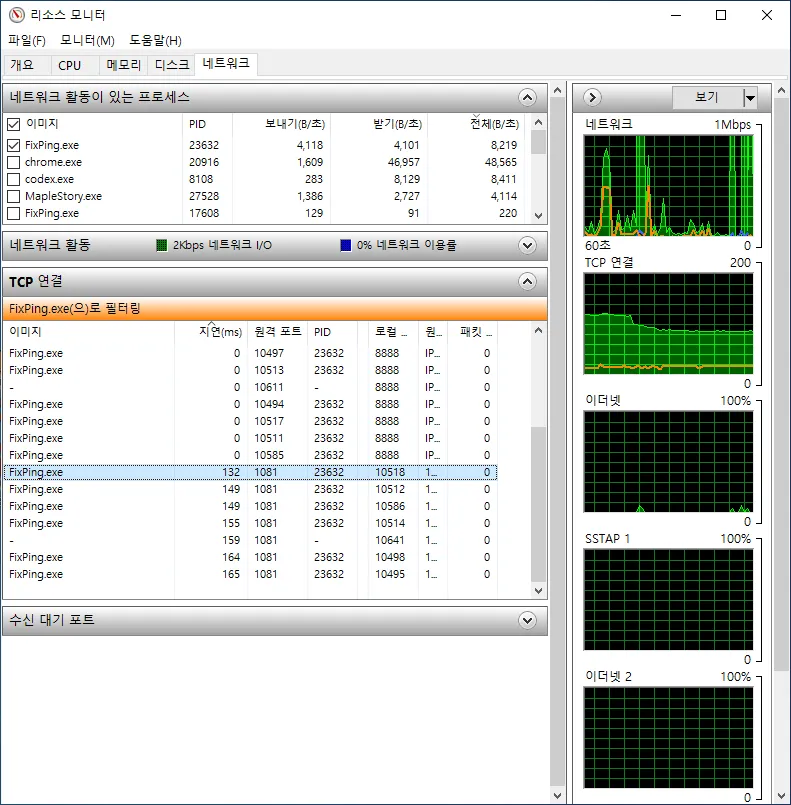
I measured roughly 130–150 ms of latency from Korea at 22:00 UTC. The test was just after a game patch, when relatively few people were online, so latency may be a little higher under normal conditions.
It didn’t feel quite as fast as ExitLag, but it was easily comfortable enough to play. Given the price difference, I’d recommend FixPing unless you really need the lowest possible latency. A five-person group paying for a full year of ExitLag Squad narrows the cost gap, but otherwise FixPing’s price is especially compelling.
5.3. Set Up FixPing
One thing to note first: I couldn’t find an option in FixPing to configure a separate server for the Nexon Launcher. I haven’t confirmed whether that causes any issues with installing the game or using the launcher. I also couldn’t find community reports of problems caused by leaving the launcher unconfigured, so I don’t expect it to be a major issue.
Click the download button on the official FixPing site to install the program.
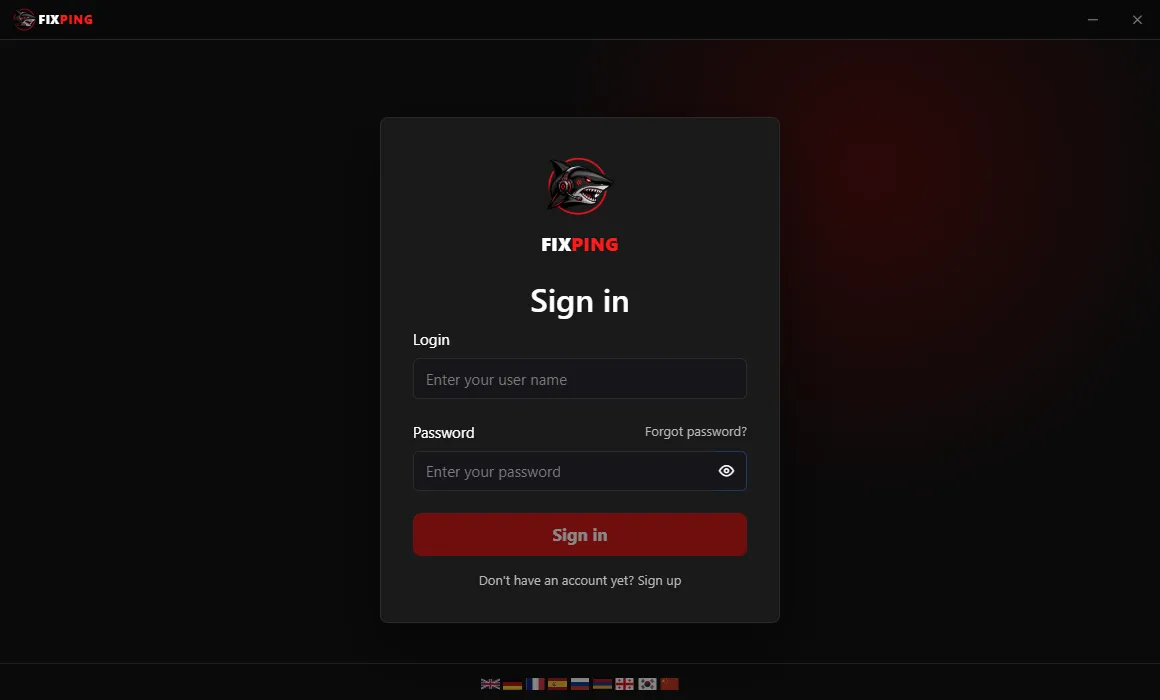
Open the program and log in.
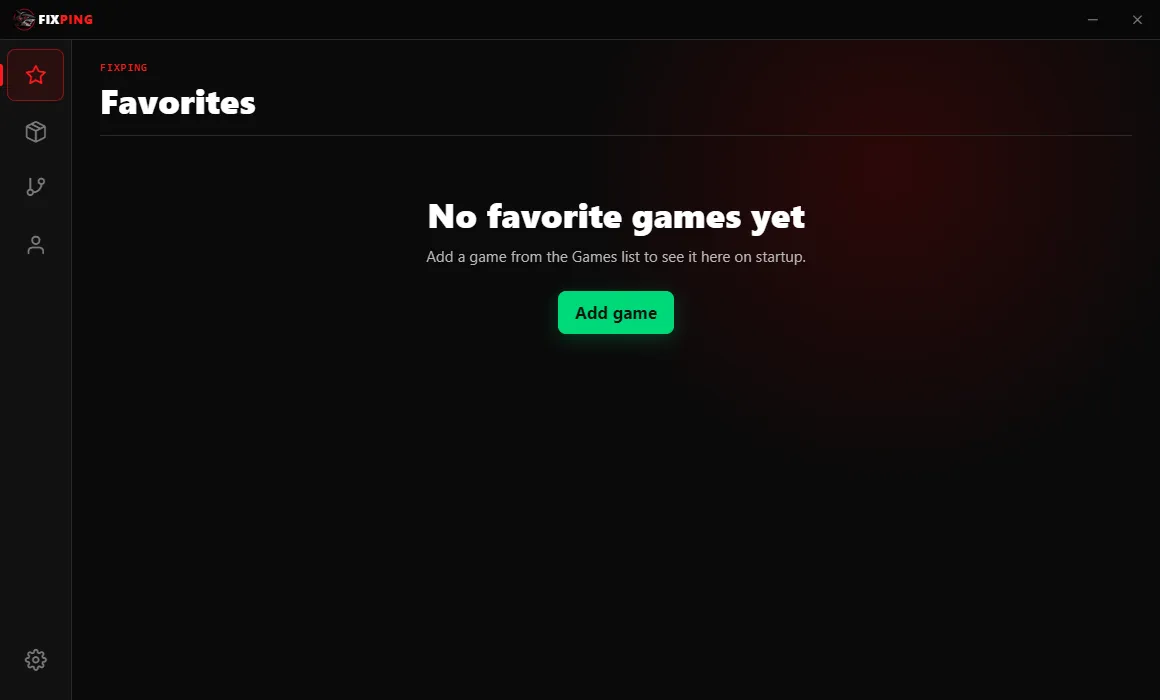
Click Add Game.
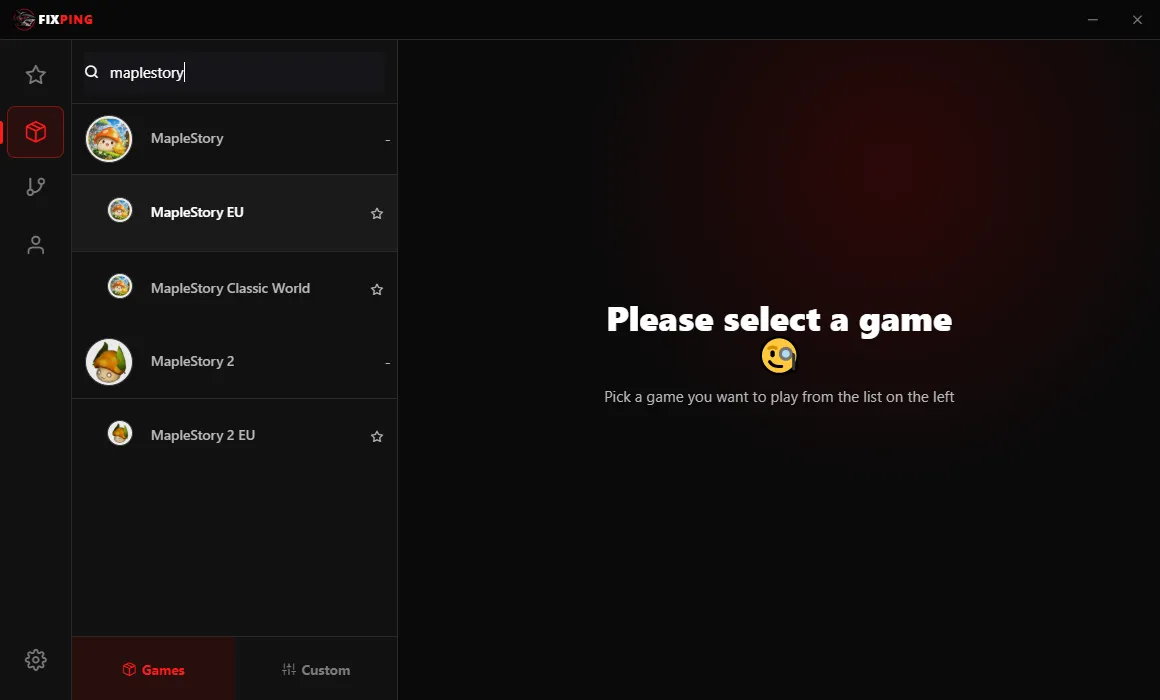
Here you need to choose MapleStory EU, not MapleStory Classic World. I don’t know exactly why, but in my test the game would not launch when I chose MapleStory Classic World.
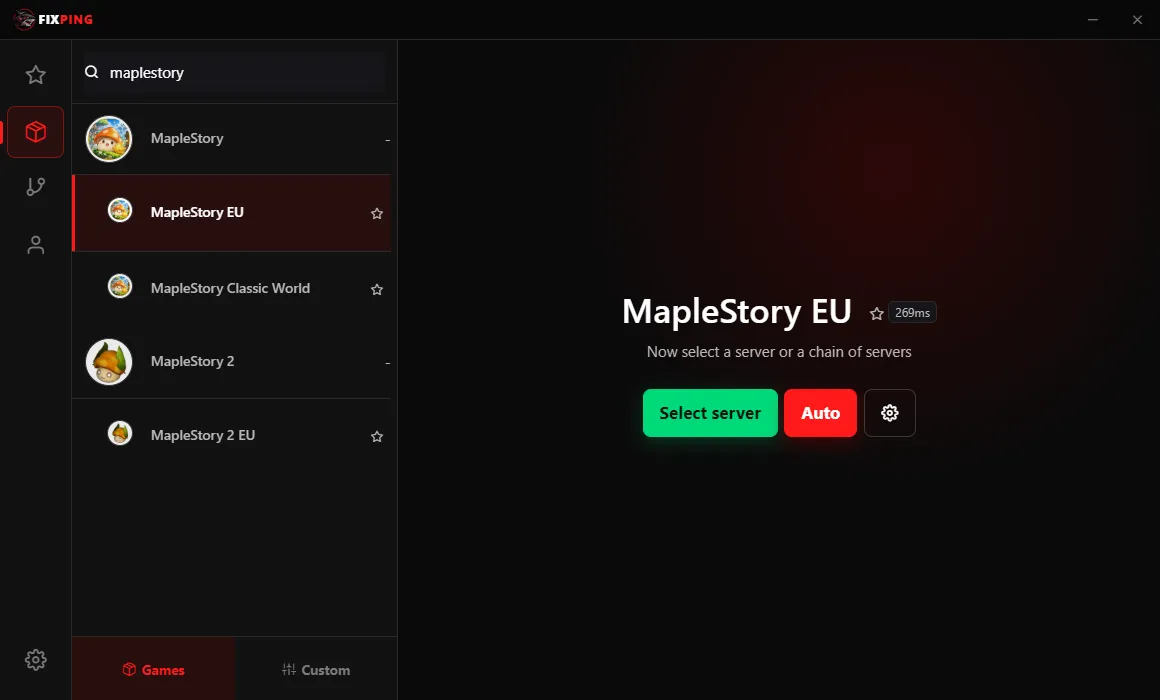
Next, choose Select server rather than Auto so you can pick a server yourself. Auto may route you like this:
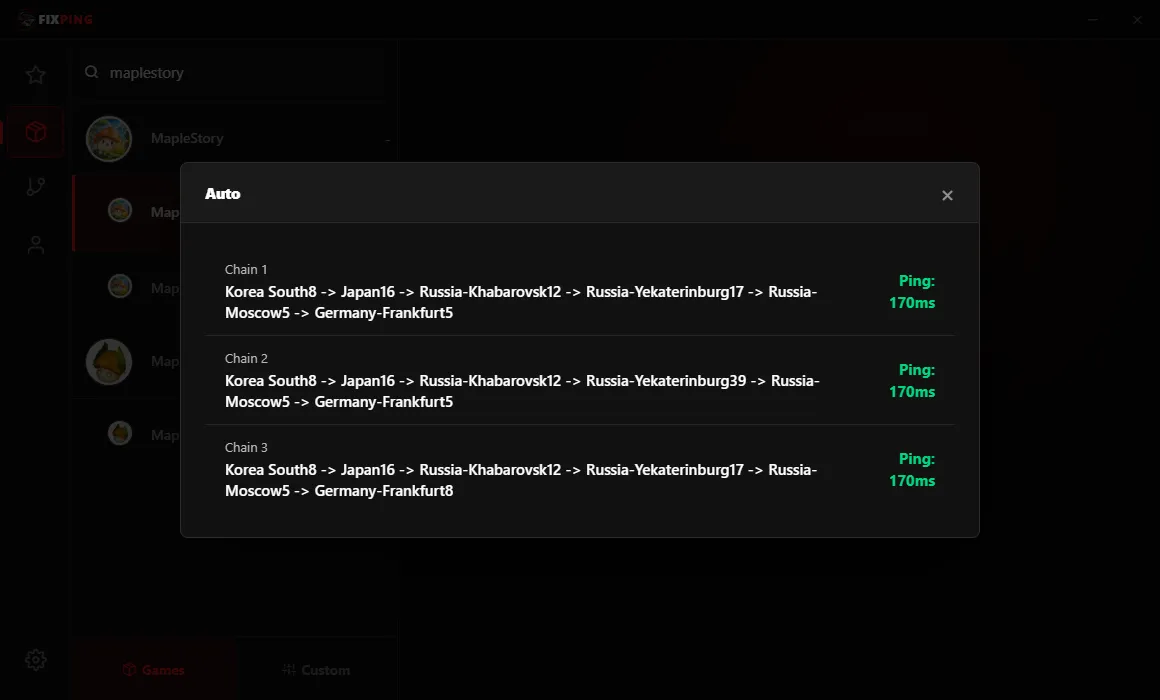
Because I selected MapleStory EU, the final hop in the route went to Germany. The displayed 170 ms refers to MapleStory EU; when I launched MSCW through that route, the actual latency was much higher.
So choose the server manually instead of leaving it on Auto.
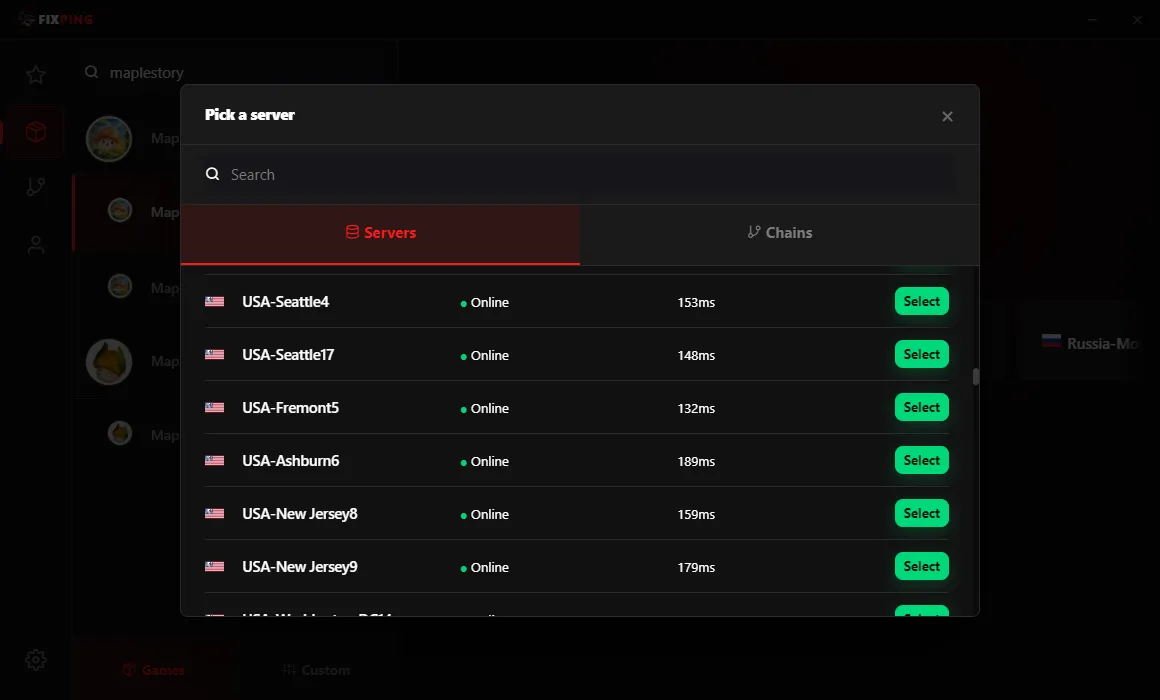
Click Select server, then choose the USA server with the lowest latency.
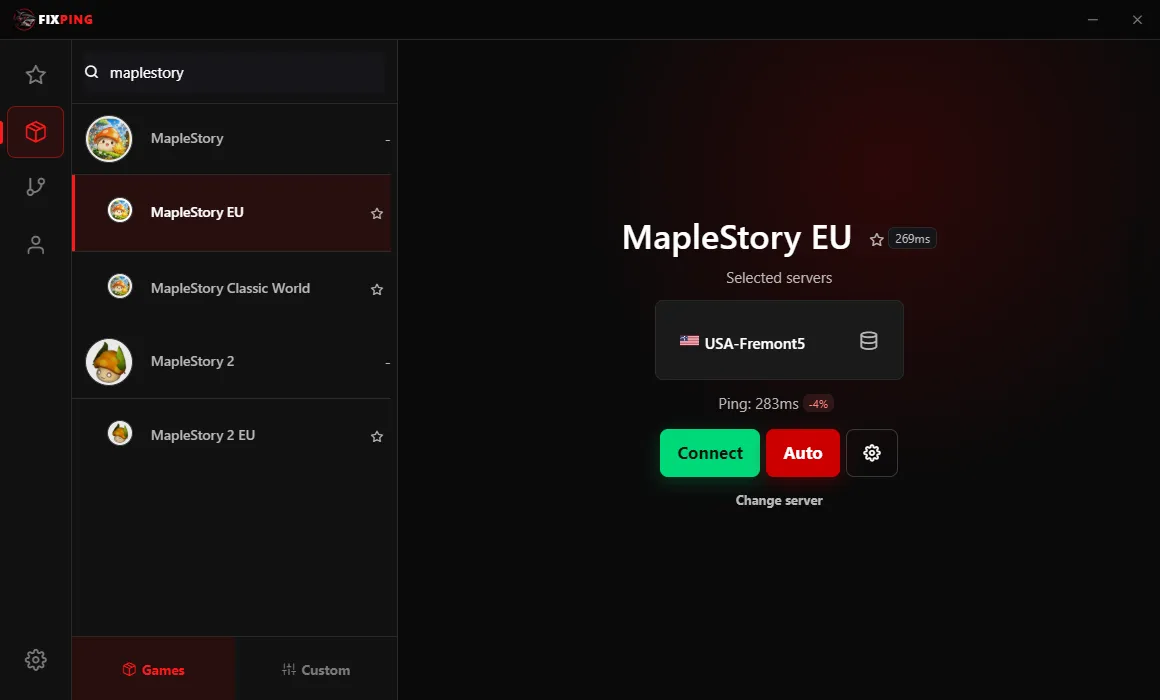
Finally, click Connect. Launch MSCW and enjoy the game!
6. Which VPN Should You Choose?
After comparing all three, my pick is FixPing. It felt a little slower than ExitLag, but I had no trouble playing, and the subscription costs much less.
Mudfish is still attractive if you play only for short periods. For now, though, the CDN issue can use more credit than expected, so be careful until it’s resolved. ExitLag suits players who want to minimize latency and don’t mind paying more for it.
These latency readings come from my tests in Korea at specific times or from what other players told me. Your location, the time you play, and the server you choose can all change the results, so treat them as a guide rather than a guarantee.
If price matters most to you but you still want a comfortable game, I’d start by considering FixPing. Have fun playing MSCW!